File Workspace
The File Workspace is the home page of the Web Transfer Client (WTC). It is the first page you see after successfully logging in.
This document explains the layout of the File Workspace, including available actions such as uploading and sharing files. For details on the behavior of each action, see Managing Files in WTC.
Navigation Bar
The navigation bar at the very top of the page identifies the application and provides buttons to navigate to other parts of WTC.

On the left side of the navigation bar, you can see the title of the application, Web Transfer Client, alongside the company logo. By default, this is the Stonebranch logo, but you can customize the branding with your own logo by configuring the Local HTTPS Server (WTC) Endpoint. For details, see UI Customization.
On the right side of the navigation bar, there are three buttons used to navigate to other parts of WTC:
- Share Icon: Opens the Shared Files page, where you manage your file sharing activity.
- Profile Icon: Opens your Profile Settings.
- Logout Icon: Signs you out of WTC.
File Table
Below the navigation bar is the main section of the File Workspace, the File Table.
The contents of the File Table depend on configurations set by administrative Users in UDMG. The files available to each Account are determined by the Virtual Path configurations of Account Group(s) and the HTTPS Server Pipeline used for WTC. For more information, see Setting Up WTC.
Configurations are flexible. Multiple Accounts may have access to the same Virtual Path (and therefore the same directories in WTC), or two Accounts may belong to two different Account Groups, each with different Virtual Paths.
Table Header
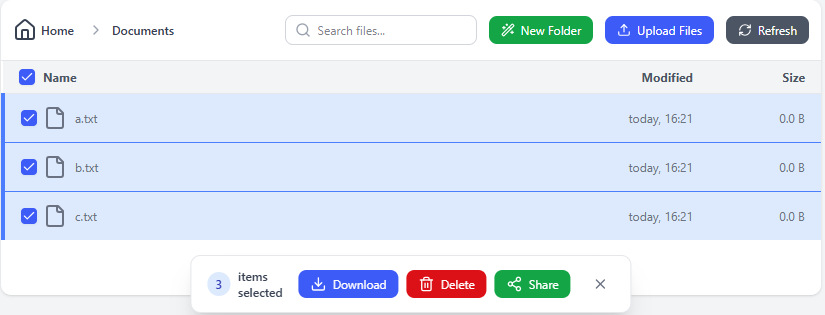
The header at the top of the File Table provides basic controls for creating folders and files, as well as navigating between existing files.

Header Buttons
The right side of the header contains three buttons:
- New Folder: Creates a new folder in the current directory. See Creating Folders for details.
- Upload Files: Uploads a file to the current directory. See Uploading Files for details.
- Refresh: Refreshes the File Table. Unlike refreshing your browser, this does not clear the Search, reset sorted columns, or take you back to the Home directory.
Search
The Search bar next to the buttons can be used to find files in the File Workspace. This is a simple text search that returns folder and file names that contain the specified search term (case insensitive). File names include the file extension, so you can search ".png" to find all PNG files, for example.
The Search only looks in the directory you are currently viewing, so it will not find matching file names inside other folders.
Breadcrumbs
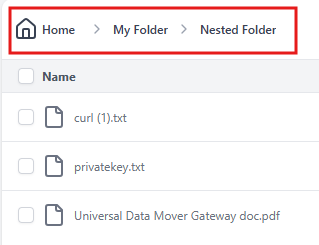
The breadcrumb trail on the left side of the header displays your current location as a path of folder names. You can click the name of any directory in the path to navigate up to that folder. The root directory is called Home.
Columns
Below the breadcrumbs and controls in the header, you can see the three columns of the File Table:
- Name
- Modified
- Size
You can sort the table by any of these columns by clicking the column name. By default, the table is sorted by Name, with folders grouped above files.
Size is only given for individual files. Folder size is not calculated.
The Modified date/time only updates when a file is uploaded or overwritten. It does not change if the file is renamed.
Table Body
The body of the File Table contains the list of folders and files in your Workspace. This is where you can navigate your file system and perform most actions.
The File Table supports infinite scroll. If the file system contains more files than can fit on a single page, WTC allows you to continuously scroll more files into view.
Interacting with Files and Folders
You can navigate into a folder by clicking it.
If you click a file, the table row is highlighted, and a set of buttons appears. This is called the Inline Action Drawer.

You can use these buttons to perform actions on an individual file, including:
- Download: Download the file. See Downloading Files for details.
- Rename: Rename the file. See Renaming Files and Folders for details.
- Delete: Delete the file. See Deleting Files and Folders for details.
- Share: Share the file. See Sharing Files for details.
- Info: View detailed metadata about the file. See Viewing File Info for details.
The available actions may depend on your permissions.
You can also access these actions by clicking the checkbox next to the name of a file. A similar set of buttons, called the Multi-select Action Bar, appears in a popup at the bottom of the page:
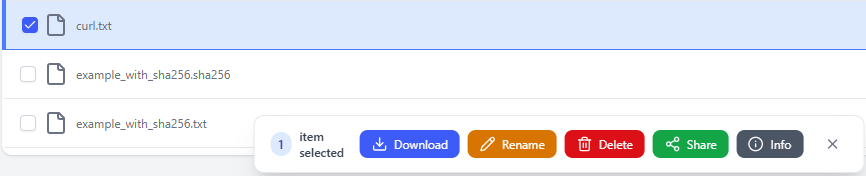
Because you can check multiple files and folders at once, the Multi-select Action Bar allows you to perform actions on multiple items at the same time. The set of available buttons may change depending on the item(s) you select.

For example, if you select multiple files, the Rename and Info buttons disappear, because you cannot rename or view multiple files at once. The other actions are valid on multiple files.
Similarly, there are fewer available actions in the Action Bar if you select a folder (or multiple folders), because you cannot share, download, or view the info of an entire folder.
Note that you can still share or download the contents of a folder in bulk by selecting all the files inside the folder.