Managing Files in WTC
This page explains all available actions you can perform on files and folders in the Web Transfer Client. All actions can be performed from either the File Workspace or the Shared Files Page.
The actions you are allowed to take may depend on your permissions.
Creating Folders
The New Folder button allows you to create a new empty folder in the File Workspace. You will be prompted to enter a name for the folder. Folder names must be unique and cannot contain any forbidden characters. If you try to create a folder with an invalid name, you will get an error message: "Error creating folder".
If the folder name is valid, WTC will create a new folder in the directory you are currently viewing. If you want to create a folder inside another folder, you must first navigate into the desired parent folder. You cannot move folders after they are created.
Uploading Files
This button allows you to upload files to the File Workspace. You will be prompted with a standard file picker dialog, where you can select one or multiple files to upload.
Like the New Folder button, the file(s) will be put in the directory you are currently viewing, so be sure you have navigated to the folder where you want to put the file(s). You cannot move a file after it has been uploaded.
Unlike creating a new folder, WTC does not prevent you from uploading a file with the same name as an existing file (assuming you have permission). If you upload a file with an existing name, the new file will overwrite the old file.
This behavior only applies within a single folder. Uploading files of the same name into different folders will not cause anything to be overwritten.
While a file is uploading, you can view the progress of the upload in the bottom-right corner of the page.

Refreshing or closing the page will cancel the upload; however, you can still navigate to other pages in WTC and do other actions like downloading files while the upload is in progress. When the file is finished uploading, it will appear in the directory you were in when you started the upload, regardless of whether you navigated to a different folder while the upload was in progress.
Downloading Files
To download a file, click the file in the File Workspace to open the Inline Action Drawer, then click Download.
You can select multiple files and download them all at once from the Multi-select Action Bar. Although you cannot download a folder directly, you can use this method to download all the contents of a folder.
Deleting Files and Folders
To delete an item from the File Workspace, select the folder(s) or file(s) you want to delete, and click the Delete button in the Inline Action Drawer or Multi-select Action Bar.
Deleting Folders:
You can only delete empty folders. This restriction exists to prevent accidental deletion of large amounts of data.
Deleting Shared Files:
You can delete a file with active share links, but all share links to the deleted file will stop working. Recipients trying to use those links will receive an error.
Before deleting files, we recommend reviewing the Shared Files Page for active shares. If the file is shared, check if recipients still need access before deleting.
If you accidentally delete a shared file, you need to re-upload and create new share links.
Renaming Files and Folders
To rename an item in the File Workspace, select the folder or file you want to rename, click the Rename button in the Inline Action Drawer or Multi-select Action Bar, then give the file a new name (maximum of 255 characters).
You can only rename one folder or file at a time.
Renaming a file does not update its Modified time. This is a standard behavior in most file systems.
If you rename a file to the name of an existing file (in the same directory), the existing file will be overwritten. Check for existing file names to avoid losing data.
If you rename a folder to the name of an existing folder (in the same directory), the two folders will be merged. No files will be lost.
Renaming Shared Files:
If you rename a file with an active share link (or rename a folder containing a shared file), the link will break. This is because share links reference file names.
Be sure to check if a file has an active share link before renaming.
Viewing File Info
To view file information, select the file you want to view, and click the Info button in the Inline Action Drawer or Multi-select Action Bar. You can only view the info of one file at a time. You cannot view the info of a folder.
The Info popup includes the following file metadata:
| Name | Description |
|---|---|
| Date Modified | Date and time the file was last modified. This value only updates when a file is uploaded or overwritten. It does not change if the file is renamed. |
| File Size | Size of the file, given in readable units (B, KB, MB, GB). |
| Location | Path to the file, relative to the home directory of your File Workspace. |
| MD5 Checksum | MD5 Checksum of the file. |
| Type | File type (e.g. PNG Image). |
| Extension | File extension (e.g. .png). |
| MIME Type | MIME type of the file (e.g. image/png). |
Sharing Files
To share files, select the file(s) in the File Workspace, and click the Share button in the Inline Action Drawer or Multi-select Action Bar.
You cannot share a folder, but you can select multiple files and share them at the same time. This will generate multiple share links (one for each file), rather than a single share link for all the shared files.
A popup will appear to create the share link:
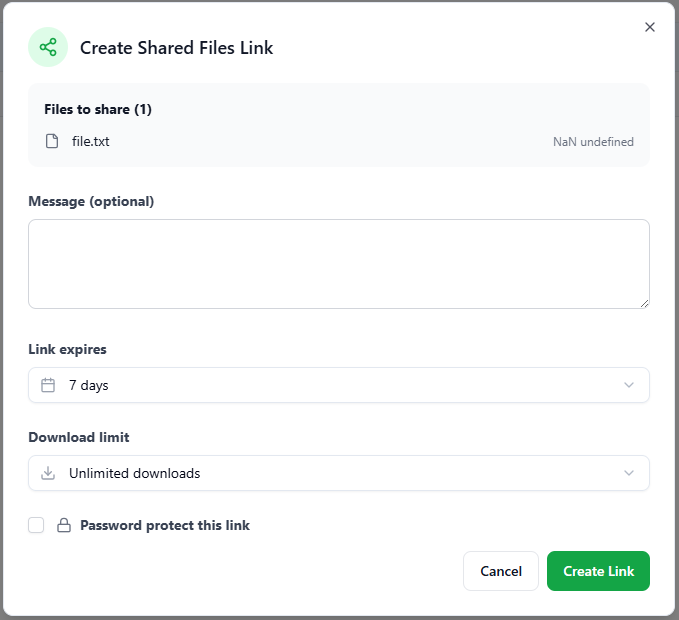
Share links are not permanent. When the link is Expired, the file can no longer be downloaded. You can set the expiration date/time to one of the following options:
- 1 hour
- 1 day
- 3 days
- 7 days
- 30 days
You can optionally control how many times the file can be downloaded by setting the Download limit. After the file has been downloaded the maximum number of times, the share link will go into the Completed status, and it cannot be downloaded again.
If you Password protect the share link, the recipient must enter the correct password to download the file. A Generate button is provided to automatically generate a random, secure password.
Managing Shared Files
You can manage shared files from the Shared Files Page. On this page, you can view all the Status of all share links.
If the Status of the share link is Active, you can perform the following actions:
- Copy: Copy the share link to your clipboard.
- Revoke: Invalidate the share link, so the file can no longer be downloaded.