UDMG as HTTPS Server
The UDMG as HTTPS Server Pipeline represents a standard HTTPS-based transfer scenario where UDMG acts as the server, exposing the Web Transfer Client (WTC) interface.
Through the WTC and using any web browser, partners can upload, download, and manage files and directories that are stored in a designated local directory, in accordance with the permissions defined in the Pipeline configuration.
This Pipeline consists of:
- A Local HTTPS Server Endpoint to expose the WTC (used as the Source Endpoint).
- A Local Filesystem Endpoint that stores the received files (used as the Destination Endpoint).
- Pipeline-specific configuration options.
Unlike Pipelines in which UDMG acts as a client, transfers in this Pipeline type are automatically triggered by the UDMG Server when a partner performs an action. To enable this, the Pipeline must be assigned to at least one Account Group to grant access to the Account associated with that partner.
Before You Begin
Understanding Paths in HTTPS Server Pipelines
When configuring a UDMG as HTTPS Server Pipeline, several path fields determine several path fields determine how files are organized and accessed through the Web Transfer Client (WTC) interface, and written to the local filesystem.
Each path has a specific role and is combined during runtime to build the complete source and destination paths used in transfers.
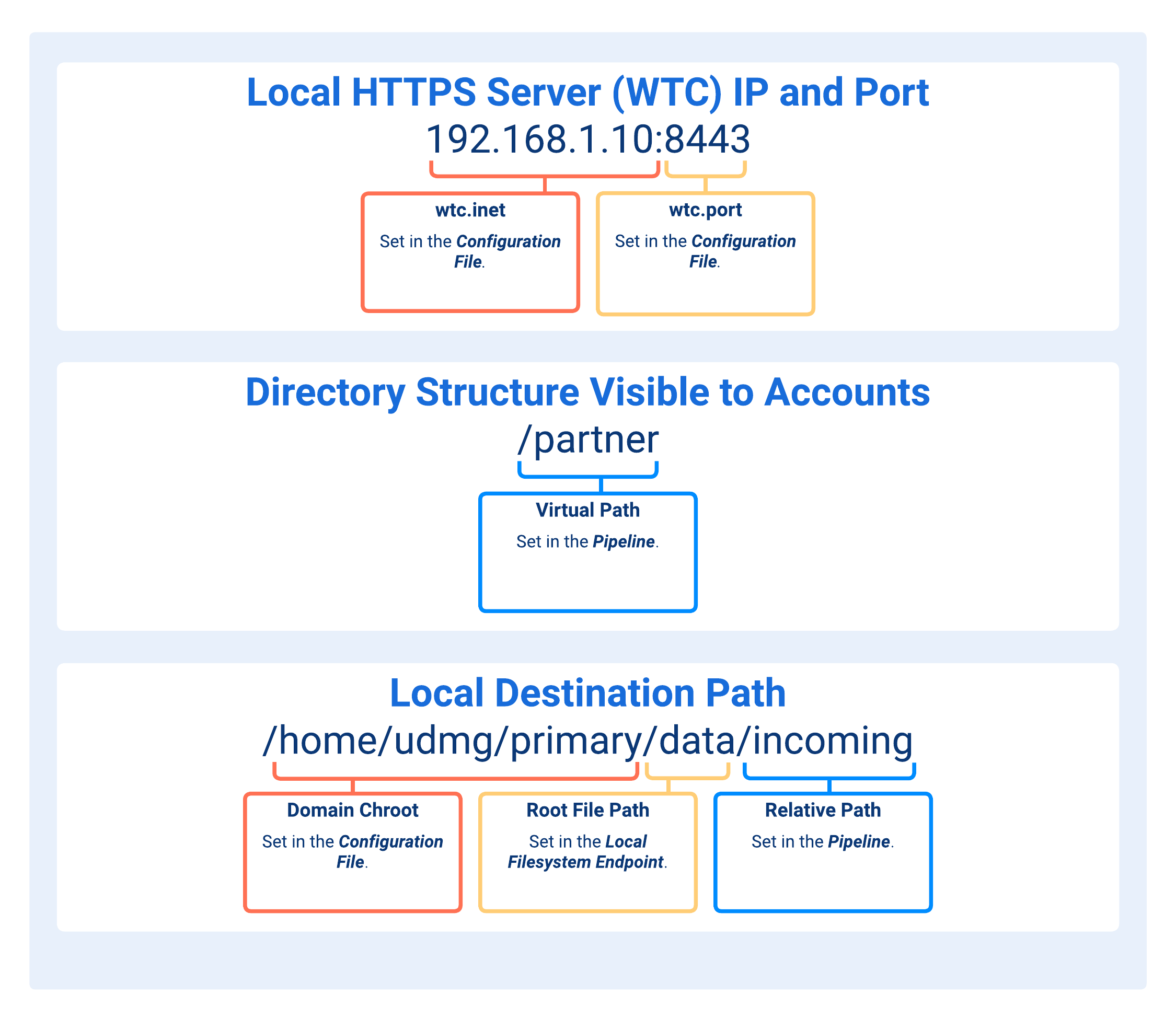
- INET and Port
- Virtual Path
- Domain Chroot
- Root File Path
- Relative Path
The wtc.inet and wtc.port arguments define the local bind address and port where the UDMG Server listens for incoming HTTPS connections for the Web Transfer Client (WTC).
These values are configured in the wtc block of the Configuration File.
Depending on your network (load balancer, DNS, firewall/NAT rules, or use of USP), the public-facing WTC hostname (or public IP) and port may differ from the local bind address configured in wtc.inet and wtc.port. In such cases, ensure that the partner is provided with the correct public-facing hostname (or public IP) and port to reach your WTC.
When accessing WTC in a browser, the URL includes a Domain-scoped path segment: /workspace/{DOMAIN_NAME}. For example, for the primary Domain: https://<host>:<port>/workspace/primary.
The Virtual Path defines the directory path that an Account can see and browse when connecting to UDMG HTTP(S) Server.
Virtual Paths represent the partner-facing directory structure. They do not need to match the underlying filesystem layout used by the Pipeline.
An Account may see more than one Virtual Path, depending on how many Pipelines (with the same Local HTTP(S) Server Endpoint as Source Endpoint) the Account can access. Each Virtual Path is associated with a specific Pipeline.
Depends on the domain_chroot argument defined in the Configuration File, which specifies the base path UDMG prepends at runtime. Valid argument values are:
NONE: No path is added.WORKDIR: The file path is resolved relative to thework_directory_pathargument defined in the Configuration File.WORKDIR+DOMAIN: Same asWORKDIR, but UDMG also prepends the Domain name. For example, if thework_directory_pathis/home/udmg/and the Domain name isprimary, the resulting path portion is/home/udmg/primary.
- Default value for
domain_chrootisWORKDIR+DOMAIN. - Default value for
work_directory_pathis/home/udmg/.
Path that establishes the storage hierarchy for all transferred files and provides the critical reference point for enforcing permissions across the file system structure.
It is defined in the Local Filesystem Endpoint used as the Destination Endpoint for this Pipeline.
The Relative Path completes the directory where files are written.
It can use Runtime Variables.
Valid formats:
//[path]/[path]/[subdir]/
It is defined in this Pipeline configuration.
Runtime Variables
UDMG allows dynamic Relative Paths using variables. The variables are allowed in the Relative Path and are expanded at runtime (when the transfer is starting or when a HTTPS command is executed).
This allows you to set a common Relative Path folder name for multiple Accounts, which are redirected to a private local directory.
| Variable | Description | Category |
|---|---|---|
${SESSION_UUID} | The unique UUID of the current session. | Session |
${DOMAIN_ID} | The numeric ID of the Domain associated with the session. | Domain |
${DOMAIN_UUID} | The UUID of the Domain associated with the session. | Domain |
${DOMAIN_NAME} | The name of the Domain associated with the session. | Domain |
${ENDPOINT_NAME} | The name of the Endpoint associated with the session. | Endpoint |
${ACCOUNT_ID} | The numeric ID of the Account for the session. | Account |
${ACCOUNT_NAME} | The login name of the Account for the session. | Account |
${YYYY} | The current year with four digits (e.g., 2024). | Date/Time |
${MM} | The current month with two digits (e.g., 09). | Date/Time |
${DD} | The current day of the month with two digits (e.g., 12). | Date/Time |
Relative Paths examples:
/${ACCOUNT_ID}/Input/${YYYY}/Processing/RelativePath
Staging
During inbound transfers, UDMG first writes incoming files to a temporary staging folder. After the upload completes (and any configured processing, such as ICAP scanning, succeeds), UDMG moves the file to its final destination under the configured Domain Chroot, Root File Path and Relative Path.
The staging folder is configured on the Local Filesystem Endpoint as the Temporary Path. For details and configuration guidelines, see Temporary Path.
WTC Configuration
Besides creating a Local HTTPS Server (WTC) Endpoint and a UDMG as HTTPS Server Pipeline, the Web Transfer Client (WTC) service must be enabled and properly configured in the wtc block of the Configuration File.
This global configuration defines the listener address, HTTPS port, and TLS certificates used by all WTC across every Domain.
For detailed instructions, see Setting Up the Web Transfer Client (WTC).
Account Authentication
Remote clients connecting to a Local SFTP Server Endpoint are authenticated using Accounts, each of which defines a unique set of credentials authorized to access one or more Pipelines. These Accounts can be created internally within UDMG or can be provisioned by an LDAP provider (see Authentication).
For authentication to succeed:
- The client must connect using credentials that match a configured Account.
- The Account must belong to an Account Group.
- The Account Group must be assigned to the Pipeline that will handle the transfer.
This layered approach ensures:
- Only clients with valid, known credentials can access the Local SFTP Server.
- Access is restricted to the Pipelines explicitly linked to the client's Account Group.
- Credentials are managed centrally via Account Groups, decoupled from individual Pipelines.
For detailed instructions on this topic, refer to the Accounts and Account Groups.
Permissions
The file and folder level permissions Accounts can perform associated with the Relative Path. The permissions are set for the Local Filesystem Endpoint.
The available permissions are:
| Permission | Availability |
|---|---|
| Download/Read File | |
| Upload/Write File | |
| Overwrite File | |
| Delete File | |
| List File | |
| Make Directory | |
| Remove Directory | |
| Rename File | |
| Share File |
Partners using HTTPS GUI clients should have List File permission to browse the directory properly. If List File is not included, partners may see empty folders, missing files, or inconsistent UI behavior.
Universal Event
UDMG seamlessly integrates with UAC to automate the entire business workflow, ensuring that file transfers become part of a comprehensive, orchestrated process rather than isolated data movements. One way to integrate UDMG into UAC is to enable the UAC Universal Event within a Pipeline. When enabled, a UAC Universal Event is generated each time a file transfer action occurs through the Pipeline on the UDMG Server. This event is used to trigger a Universal Monitor Task for file processing or further actions concerning this transfer within UAC.
The event is published at the end of a receiving file transfer for both successful and failed transfers. For failed transfers, error details can be added to the event attributes.
For the UAC Universal Event to work, the integration with UAC must be also be enabled within the Pipeline and configured within the Configuration File.
Adding a Pipeline
To add a Pipeline, follow these steps:
- From the Sidebar, select Configuration > Pipelines.
- Click Add Pipeline.
- Complete the Name and Description for the new Pipeline.
- Select the Source Endpoint with a Local SFTP Server Endpoint type and fill out the dynamic fields.
- Select the Destination Endpoint with a Local Filesystem Endpoint type and fill out the dynamic fields.
- Click Add.
UDMG does not allow for the creation of identical Pipelines (even with unique names). The Pipeline must pass the Source Endpoint + Destination Endpoint + Permissions + Virtual Path uniqueness check. See Pipelines for more information on Pipeline validation checks.
Field Descriptions
The following table describes the fields that display in the Pipeline Details:
| Name | Description | Specifications | Required |
|---|---|---|---|
| Name | Name of the Pipeline. info Using a descriptive name makes the association of Pipelines to Account Groups easier. |
| Yes |
| Description | Description for the Pipeline. | No | |
| Source Endpoint | The Source Endpoint is where files are retrieved, originated, or come from. Allowable Source Endpoints are based on the available Pipeline combinations. |
| Yes |
| Destination Endpoint | The Destination Endpoint is where files are delivered to or sent. Allowable Destination Endpoints are based on the available Pipeline combinations. |
| Yes |
| Virtual Path | The path that is the directory structure visible to an Account upon login, but it doesn't directly correspond to the physical filesystem structure. info Modifying this path after initial setup will impact associated Accounts. | Format: / | Yes |
| Relative Path | The path appended to the Root File Path (set on the Endpoint page) to form a complete directory path. info Modifying this path after initial setup will impact associated Accounts. | Format: can start with a | Yes |
| Permissions | The file and folder level permissions associated with the Relative Path. Options:
|
| Yes |
| Universal Event | When enabled, a UAC Universal Event is generated based on the Pipeline configuration. | Defaulted to Disabled. | Yes |
Editing a Pipeline
To edit a Pipeline, follow these steps:
- From the Sidebar, select Configuration > Pipelines.
- Click the Name of the Pipeline you want to edit.
- Click the Edit button above the Pipeline details.
- Edit details for the Pipeline.
- The Source Endpoint and Destination Endpoint cannot be changed after creation.
- Click Update.
Upon Pipeline update, UDMG checks for Endpoint Source + Endpoint Destination + Configuration + Virtual Path uniqueness, as well as Endpoint Destination + Virtual Path uniqueness across all Pipelines already associated with Account Groups and Accounts.
Pipeline changes are reflected immediately only for new connections. Ongoing client sessions are not affected until they reconnect.
Managing a Pipeline
All Pipelines support the ability to view the complete Pipeline and linked Endpoint details, including Account Group information.
Viewing Pipeline Details
To view the details of a Pipeline, follow these steps:
- From the Sidebar, select Configuration > Pipelines.
- Click the Name of the Pipeline you want to view.
- Click the Overview Tab or Account Groups Tab to see additional Pipeline, Endpoint, and Account Group details.
Pipeline Metadata
Pipeline details include all parameters given in the Field Descriptions table, plus the following read-only metadata:
| Name | Description |
|---|---|
| UUID | Universally Unique Identifier of this Pipeline. |
| Version | Version number of the configuration. Every change increases the number. |
| Enabled | Pipeline's Enabled status. If enabled, field is set to True. |
| Created | Date and time this Pipeline was created. |
| Updated | Date and time this Pipeline was last updated. |
Enabling and Disabling Pipelines
Pipelines can be Enabled or Disabled to control their active status and ability to participate in file transfers. The status is defaulted to Enabled and can be changed after creation. The Configuration Item's Disabled status does not impact whether it can be configured. Also, Disabled Endpoints can be added to a Pipeline.
- Enabled (default): The Pipeline is active and allows file transfers.
- Disabled: The Pipeline is inactive and does not allow file transfers.
To enable or disable a Pipeline, follow these steps:
- From the Sidebar, select Configuration > Pipelines.
- Click the Name of the Pipeline you want to enable or disable.
- Click the Enable or Disable button above the Pipeline details.
- If the Pipeline is Disabled, then the button displays Enabled. If the Pipeline is Enabled, then the button displays Disabled.
- Click Update.
Deleting a Pipeline
To delete a Pipeline, follow these steps:
- From the Sidebar, select Configuration > Pipelines.
- Click the Name of the Pipeline you want to delete.
- Click the Delete button above the Pipeline details.
- You will be asked to confirm the deletion. Click Delete.
UDMG prevents the deletion of a Configuration Item if it is currently referenced by another Configuration Item (i.e., Account Group). The Configuration Item must be edited or the reference removed before you can delete the Pipeline. Deletion cannot be undone.
Monitoring a Pipeline
To monitor and determine the status of a Pipeline, the Transfers page and Endpoints page must be monitored to track incoming Transfers and the Source and Destination Endpoints' individual statuses, respectively. If an Endpoint (Local SFTP Server) goes down (Endpoint Status <> Running), then all of the associated Pipelines, Account Groups, and Accounts are impacted.
On the Transfers page, the following fields indicate the type of Local Transfer.
- Is Schedule: If No, then the Transfer was a Local Transfer.
- Is Send:
- If No, then the Account uploaded a file to UDMG
- If Yes, then the Account downloaded a file from UDMG.