WTC Shared Files Page
After sharing files in your File Workspace, you can manage those shared files from the Shared Files Page.
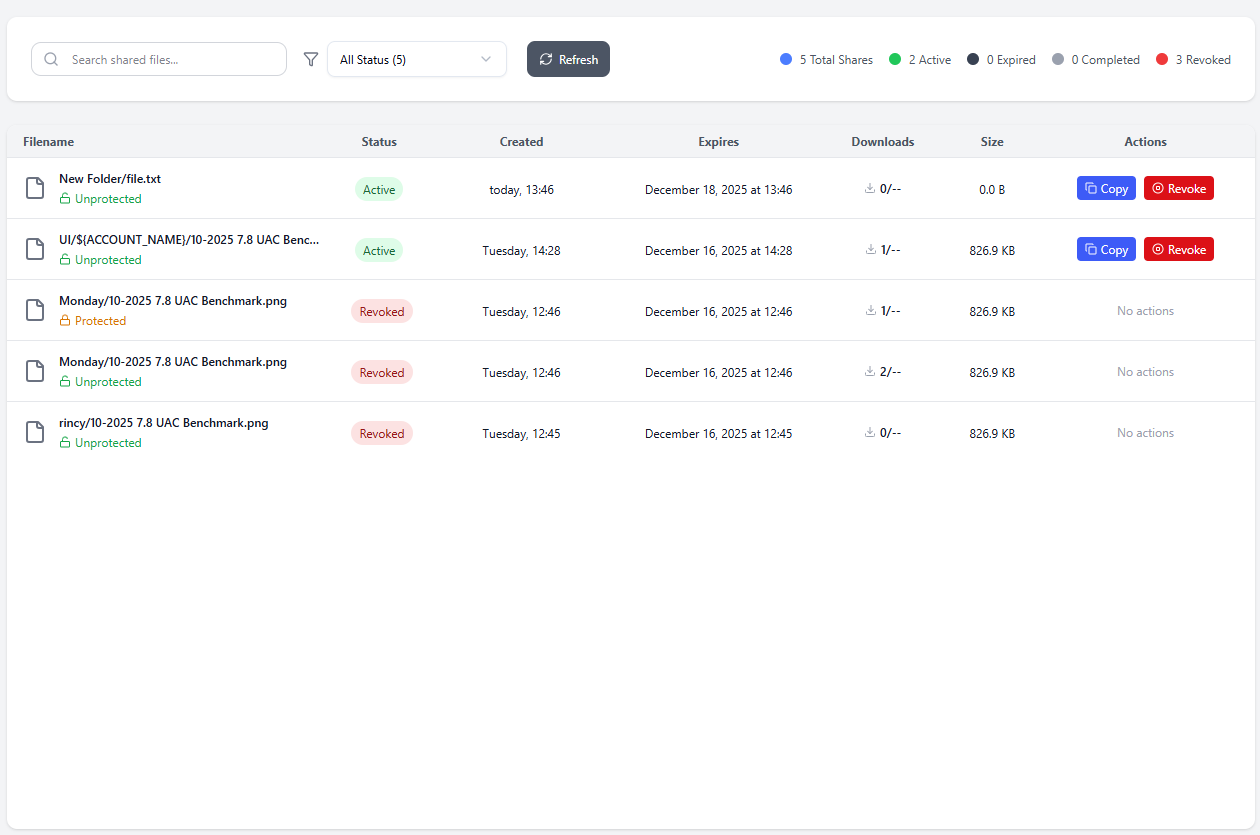
This document explains the information given on the Shared Files Page, including available actions such as copying and revoking share links. For details on how to share files, see Sharing Files.
Filter and Search
The section of the page above the table identifies the number of shared files, grouped by Status. You can also filter and search on the files in the table from here.
Status
Share links may be in one of four statuses:
| Name | Description |
|---|---|
| Active | The share link is valid, so the file can be downloaded. |
| Expired | The expiration date on the share link has passed, so the file can no longer be downloaded. |
| Completed | The download limit has been reached, so the file cannot be downloaded again. |
| Revoked | The share link has been manually invalidated, so the file cannot be downloaded. |
These statuses apply to share links, not the shared files themselves. You can generate multiple share links for the same file. If one link is Revoked/Expired/Completed, but another link is still Active, the file can still be downloaded from the Active link.
At the top of the Shared Files Page, you can see the number of shared files in each status:

The number of Total Shares includes every status.
You can filter the files shown in the table by using the Status Filter:

The number of files in each status is given in parentheses after each status.
Search
The Search bar on the left can be used to find shared files. This is a simple text search that returns file names that contain the specified search term (case insensitive). File names include the file extension, so you can search ".png" to find all PNG files, for example.
Shared Files Table
The main section of the page is the Shared Files Table, where you can view all share links that have been created in your workspace.
Columns
The columns of the Shared Files Table are explained below:
| Name | Description |
|---|---|
| Filename | Name of the file being shared. Below the name, the file is labeled as either Protected or Unprotected. Protected files require a password to download. |
| Status | Status of the share link. |
| Created | Date and time the share link (not the file itself) was created. |
| Expires | Date and time the share link expires. If the expiration time has already passed, the text is red. |
| Downloads | Number of times the file has been downloaded from the share link. If the share link has a download limit, this number is paired with the maximum number of downloads (e.g. |
| Size | The size of the file. |
| Actions | If the Status of the share link is Active, you can perform the following actions:
|
You can sort the table by any of these columns by clicking the column name. By default, the table is sorted by Created date/time.