UDMG as AS2 Client
The UDMG as AS2 Client Pipeline type represents a standard AS2 transfer scenario in which UDMG acts as the sender, pushing files from a local filesystem to your partner's AS2 Receiver.
This Pipeline consists of:
- A Local Filesystem Endpoint that represents the location of the files to be transferred (used as the Source Endpoint).
- A Remote AS2 Server Endpoint that represents your partner's AS2 Receiver (used as the Destination Endpoint).
- Pipeline-specific configuration options.
- An HTTP request to the Transfer Scheduled API.
Before You Begin
Prerequisites
Before configuring this Pipeline, we recommend you first:
- Obtain your partner's AS2 Server connection details from their administrator, including hostname, port, and authentication credentials.
- Identify your local source directory and ensure that UDMG has the necessary permissions to read files from it.
- Test network connectivity to your partner's AS2 Server and manually verify that authentication succeeds.
- Prepare API integration setup and have a UDMG User with domain-level permissions.
Understanding Paths in AS2 Client Pipelines
When configuring a UDMG as AS2 Client Pipeline, several path fields determine where files are read from locally and where they are sent to.
Each path has a specific role and is combined during runtime to build the complete source path and destination URL used in transfers.
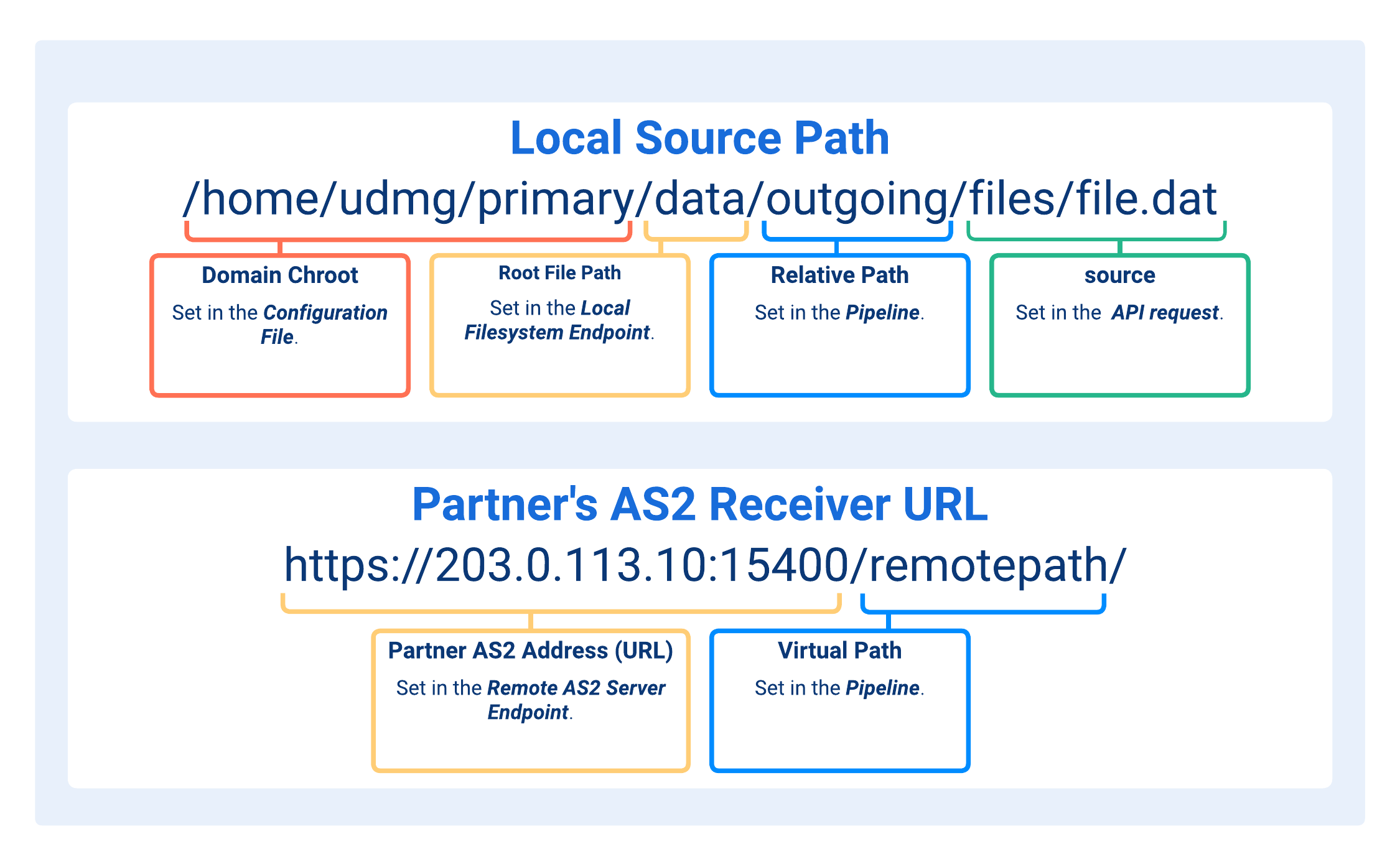
- Domain Chroot
- Root File Path
- Relative Path
- source
- Partner AS2 Address (URL)
- Virtual Path
Depends on the domain_chroot argument defined in the Configuration File, which specifies the base path UDMG prepends at runtime. Valid argument values are:
NONE: No path is added.WORKDIR: The file path is resolved relative to thework_directory_pathargument defined in the Configuration File.WORKDIR+DOMAIN: Same asWORKDIR, but UDMG also prepends the Domain name. For example, if thework_directory_pathis/home/udmg/and the Domain name isprimary, the resulting path portion is/home/udmg/primary.
- Default value for
domain_chrootisWORKDIR+DOMAIN. - Default value for
work_directory_pathis/home/udmg/.
Path that establishes the storage hierarchy for all transferred files and provides the critical reference point for enforcing permissions across the file system structure.
It is defined in the Local Filesystem Endpoint used as the Source Endpoint for this Pipeline.
The Relative Path completes the directory where files are written.
Valid formats:
//[path]/[path]/[subdir]/
It is defined in this Pipeline configuration.
It completes the full path to the source file to be transferred. It must include the filename and extension, and may also include one or more subdirectories within the defined Relative Path of the Endpoint. It is typically provided as a parameter in the API request when triggering a transfer.
Valid formats:
/[filename.ext]/[path]/[filename.ext]/[path]/[subdir]/[filename.ext]
For implementation details, see Transfer Initialization via Scheduled API.
The URL used by your partner's AS2 Receiver to accept incoming messages.
It includes the IP address or domain name, port, and an optional path.
It is defined in the Remote AS2 Server Endpoint.
Final path appended to the URL provided in the Endpoint's Partner AS2 Address (URL).
Valid formats:
//[path]/[path]/[subdir]
Leave as / if the full URL is already provided in the Endpoint's Partner AS2 Address (URL).
Authentication to Partner's AS2 Server
When UDMG connects to your partner's AS2 Server as a client, authentication can occur in one of two ways, depending on the Server configuration and how it responds during the initial HTTPS handshake.
Partner ID and Certificate Mapping (Standard)
This is the default and most common AS2 authentication method, where:
- UDMG identifies itself using the AS2 Identifiers and Credentials configured in the Remote AS2 Server Endpoint.
- The partner's AS2 Server validates this identifier against its own configuration, using the digital certificate previously exchanged between both parties.
- Authentication and trust are fully managed through the AS2 protocol's built-in signing and encryption mechanisms (no additional credentials are required).
Partner ID, Certificate, and Basic Authentication
Some partners add an extra Basic Authentication layer before AS2 message exchange begins. In these cases:
- UDMG uses the Username and Password credentials referenced in the Pipeline configuration to authenticate during the HTTPS request.
- This Basic Authentication step occurs prior to the the AS2 protocol negotiation, acting as a gatekeeper that limits access to authorized clients.
Authentication Flow
UDMG determines which authentication path to use based on two factors:
| Credentials were added to the Pipeline | The AS2 Server requires Basic Auth | Behavior |
|---|---|---|
| UDMG performs Basic Auth (using the supplied credentials), then proceeds with Partner ID-Certificate mapping for AS2 message exchange. | ||
| UDMG proceeds with standard Partner ID-Certificate mapping only. | ||
| Connection fails with an authentication error. |
Transfer Initialization via Scheduled API
When UDMG acts as a client, each transfer must be explicitly scheduled and triggered through the Transfers Scheduled API, considering the configuration provided at the Pipeline and Endpoint levels and the HTTP request.
You must first create the Pipeline using the Field Descriptions below, providing Endpoint-specific information.
From there, to initiate a Transfer, you must submit an API request using the API Endpoint with the Pipeline name, the location and name of the file on UDMG to be transferred, and the execution timestamp.
This design enables precise control over file movement and allows each Transfer to be dynamically customized and scheduled.
API Endpoint
Path
POST /api/v1/domains/${UDMG_DOMAIN_NAME}/transfers
Request Body
The request body includes the following fields:
| Key | Description | Format | Required |
|---|---|---|---|
pipeline | Name of the Pipeline. | Exact match to the Pipeline's Name field. | Yes |
when | Date and time of when to execute the file transfer. If a date in the past is provided, then the Transfer is initiated after the next system pending transfer check (transfer.checkInterval parameter is defaulted to every minute). | Must be in RFC3339 format ("2025-01-01T00:00:00Z"). | Yes |
source | Refer to Understanding Paths. | Yes |
Schedule a File Transfer via API
Use the following curl command to schedule a file transfer through the Transfers Scheduled API:
curl http://<UDMG_HOST>/api/v1/domains/${UDMG_DOMAIN_NAME}/transfers \
 -X POST \
 -H "Content-Type: application/json" \
 -d '{
   "pipeline": "Pipeline_Supplier",
   "when": "2025-07-03T15:43:52.344Z",
   "source": "/Form1000.dat",
   "destination":  "/Received/Form1000.dat"
 }'
View the List of Scheduled Transfers
Use the following curl command to view the list of scheduled transfers:
  curl http://<UDMG_HOST>/api/v1/domains/${UDMG_DOMAIN_NAME}/transfers/scheduled
   -X GET \
   -H "Content-Type: application/json" \
Response example:
{
  "id": 1,
  "pipeline": "Pipeline_Supplier",
  "username": "robi",
  "source": "/data/August/Form1000.dat", // Root File Path + Relative Path + source
  "destination": "/Taxes/Received/Form1000.dat", // Virtual Path + destination
  "schedule": "2025-07-03T15:43:52.344Z",
  "status": "Completed",
  "executedAt": "2025-08-22T20:44:02Z",
  "completedAt": "2025-08-22T20:44:02Z"
}
Adding a Pipeline
To add a UDMG as AS2 Client Pipeline, follow these steps:
- From the Sidebar, select Configuration > Pipelines.
- Click Add Pipeline.
- Complete the Name for the new Pipeline.
- Select the Source Endpoint with a Local Filesystem Endpoint type.
- Select the Destination Endpoint with a Remote AS2 Server Endpoint type.
- Fill out the dynamic fields following the Field Descriptions table.
- Click Add.
UDMG does not allow for the creation of identical Pipelines (even with unique names). The Pipeline must pass the Source Endpoint + Destination Endpoint + Permissions + Virtual Path uniqueness check. See Pipelines for more information on Pipeline validation checks.
Field Descriptions
| Name | Description | Specifications | Required |
|---|---|---|---|
| Name | The name of the Pipeline. |
| Yes |
| Description | The description of the Pipeline. | No | |
| Source Endpoint | The Endpoint that represents the source of expected data. |
| Yes |
| Destination Endpoint | The Endpoint that represents the destination for the expected data. |
| Yes |
| Relative Path | Path to the directory where the source file is located. For more information, refer to Understanding Paths. |
| Yes |
| Virtual Path | Path where the destination file will be written on your partner's AS2 Server. For more information, refer to Understanding Paths. |
| Yes |
| Credentials Name | The client authentication Credentials used to authenticate to your partner's AS2 Server. | Must reference an already created Username and Password. | Yes, if your AS2 partner requires Basic Authentication. |
| Universal Event | While this field is currently in the form, it's not used in the remote transfer configuration. | No |
Editing a Pipeline
To edit a UDMG as AS2 Client Pipeline, follow these steps:
- From the Sidebar, select Configuration > Pipelines.
- Click the Name of the Pipeline you want to edit.
- Click the Edit button above the Pipeline details.
- Edit details for the Pipeline.
- The Source Endpoint and Destination Endpoint cannot be changed after creation.
- Click Update.
Upon Pipeline update, UDMG checks for Endpoint Source + Endpoint Destination + Configuration + Virtual Path uniqueness.
Managing a Pipeline
All Pipelines support the ability to view the complete Pipeline and linked Endpoint details.
Viewing Pipeline Details
To view the details of a UDMG as AS2 Client Pipeline, follow these steps:
- From the Sidebar, select Configuration > Pipelines.
- Click the Name of the Pipeline you want to view.
- Click the Overview Tab or Details Tab to see additional Pipeline and Endpoint details.
Pipeline Metadata
Pipeline details include all parameters given in the Field Descriptions table, plus the following read-only metadata:
| Name | Description |
|---|---|
| UUID | Universally Unique Identifier of this Pipeline. |
| Version | Version number of the configuration. Every change increases the number. |
| Enabled | Pipeline's Enabled status. If enabled, field is set to True. |
| Created | Date and time this Pipeline was created. |
| Updated | Date and time this Pipeline was last updated. |
Enabling and Disabling Pipelines
Pipelines can be Enabled or Disabled to control their active status and ability to participate in file transfers. The status is defaulted to Enabled and can be changed after creation. The Configuration Item's Disabled status does not impact whether it can be configured. Also, Disabled Endpoints can be added to a Pipeline.
- Enabled (default): The Pipeline is active and allows file transfers.
- Disabled: The Pipeline is inactive and does not allow file transfers.
To enable or disable a Pipeline, follow these steps:
- From the Sidebar, select Configuration > Pipelines.
- Click the Name of the Pipeline you want to enable or disable.
- Click the Enable or Disable button above the Pipeline details.
- If the Pipeline is Disabled, then the button displays Enabled. If the Pipeline is Enabled, then the button displays Disabled.
- Click Update.
Deleting a Pipeline
To delete a UDMG as AS2 Client Pipeline, follow these steps:
- From the Sidebar, select Configuration > Pipelines.
- Click the Name of the Pipeline you want to delete.
- Click the Delete button above the Pipeline details.
- You will be asked to confirm the deletion. Click Delete.
Monitoring a Pipeline
To monitor and determine the status of a Pipeline, the Transfers page and Endpoints page must be monitored to track incoming Transfers and the Source and Destination Endpoints' individual statuses, respectively.
On the Transfers page, the following fields indicate the type of Transfer:
- Is Schedule: If Yes, then the Transfer was a Remote Transfer.
- Is Send: If Yes, then the Remote Transfer was a push scenario.