Deployments
A Deployment defines how a Listener is launched on a specific USP Server instance, bridging the configuration defined in USP Manager with the Server's active runtime environment.
A Deployment includes several key settings that control how the Listener operates:
- Specifies which USP Server instance the Listener should run on.
- Defines the Listener startup mode (automatic or manual start).
- Optionally enables connectivity to internal targets through secure Tunnels (needed when the USP Server cannot reach those targets directly).
- Only for session-break Listeners, optionally includes tunneling settings for additional services.
For more context on session break and Direct Mode, refer to Deployment Models.
Before You Begin
Startup Modes
Controls how the associated Listener is activated on the USP Server instance. The available options are:
- Auto: The Listener starts automatically after the configuration is pushed to the server, and it will start automatically on subsequent USP Server startups.
- Manual: The Listener must be started manually after the USP Server is running (for TCP, this is done through the USP REST API—see Managing a Deployment).
Tunneling Configuration
In scenarios where the USP Server cannot directly reach internal systems due to firewall restrictions, tunneling must be configured to bridge the connection.
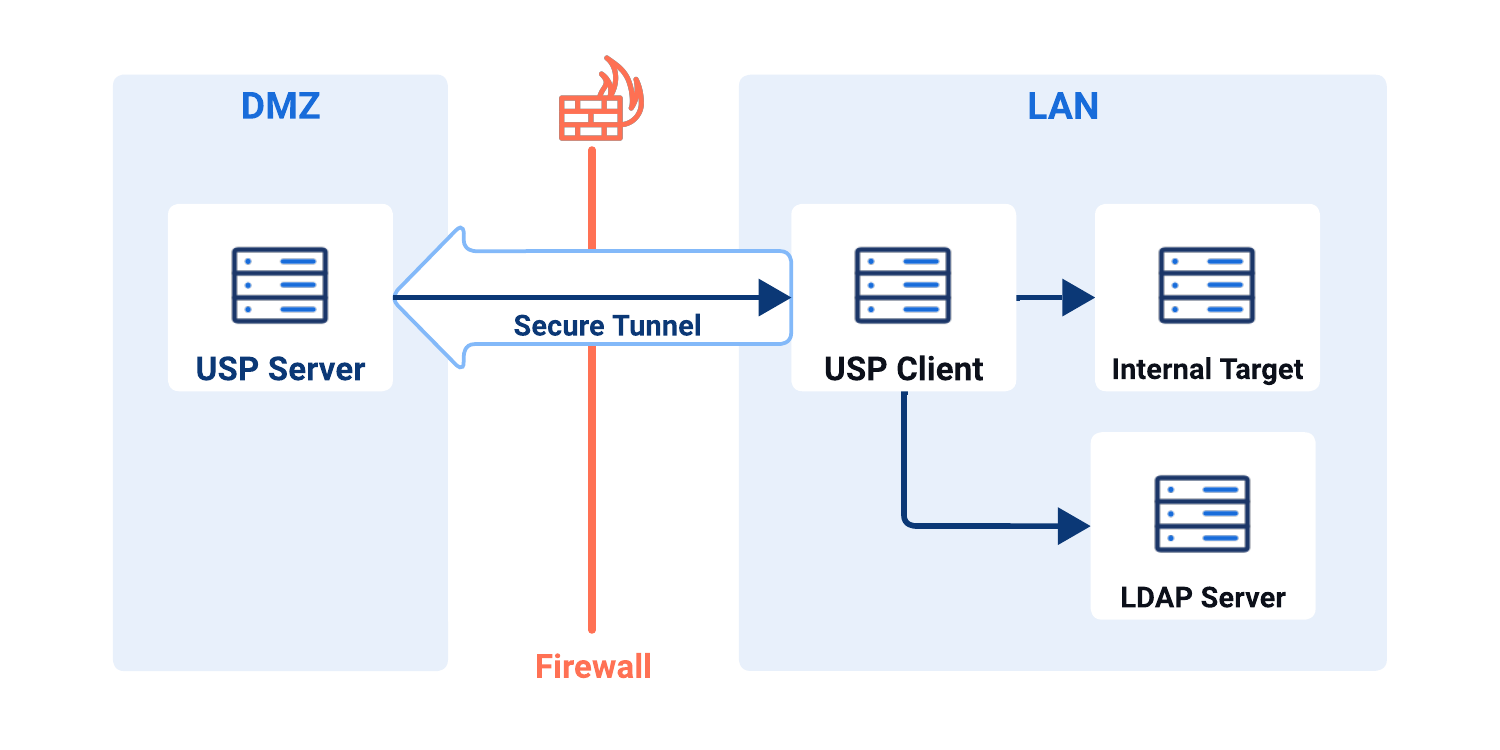
Tunnels and Proxy Clients must be configured together. If you select a Tunnel, you must also select a Proxy Client.
Target Connection
If the USP Server cannot directly reach an internal target due to firewall restrictions, configure tunneling so the outbound connection can be made through a USP Client:
- Tunnel: Selects the Tunnel on the USP Server that listens for incoming USP Client connections.
- Proxy Client: Selects the USP Client instance that connects to the Tunnel and provides connectivity to the internal network.
LDAP and ICAP Connection (Only for Session-Break)
For session-break Deployments that must reach directory services (such as LDAP) or ICAP scanners behind a firewall, configure tunneling for those services:
- Tunnel for Other Services (LDAP, ICAP, etc.): Selects the Tunnel used to connect to directory services or ICAP scanners.
- Proxy Client for Other Services (LDAP, ICAP, etc.): Selects the USP Client instance that connects to that Tunnel and forwards requests to those services.
Deployment Administration
Adding a Deployment
To add a Deployment, follow these steps:
- From the Sidebar, click Configuration > Listeners.
- Click the protocol card of the Listener you want to add the Deployment to.
- Click the row of the Listener you want to deploy.
- Go to the Deployments tab.
- Click the Add Deployment button.
- Complete the details for the new Deployment using the Field Descriptions table as a guide.
- Click Save.
Field Descriptions
- FTP(S)
- HTTP(S)
- SFTP
- TCP
| Name | Description | Specifications | Required |
|---|---|---|---|
| Proxy Server | The target USP Server instance. |
| Yes |
| Startup Mode | The behavior of the Deployment upon startup of the USP Server instance. Options:
| Yes | |
| Description | The description of the Deployment. | No | |
| Tunnel | The Tunnel used for target connections. | Must reference an existing Tunnel. | Yes, if the USP Client is behind a firewall. |
| Proxy Client | The Proxy Client to forward the connections. | Must reference an existing Proxy Client. | Yes, if there is a Tunnel. |
| Tunnel for Other Services (LDAP, ICAP, etc.) | The Tunnel for other services communications. | Must reference an existing Tunnel. | Yes, if the service server is behind a firewall. |
| Proxy Client for Other Services (LDAP, ICAP, etc.) | The Proxy Client that connects to the service server. | Must reference an existing Proxy Client. | Yes, if there is a Tunnel for Other Services (LDAP, ICAP, etc.) |
| Name | Description | Specifications | Required |
|---|---|---|---|
| Proxy Server | The target USP Server instance. |
| Yes |
| Startup Mode | The behavior of the Deployment upon startup of the USP Server instance. Options:
| Yes | |
| Description | The description of the Deployment. | No | |
| Tunnel | The Tunnel used for target connections. | Must reference an existing Tunnel. | Yes, if the USP Client is behind a firewall. |
| Proxy Client | The Proxy Client to forward the connections. | Must reference an existing Proxy Client. | Yes, if there is a Tunnel. |
| Tunnel for Other Services (LDAP, ICAP, etc.) | The Tunnel for other services communications. | Must reference an existing Tunnel. | Yes, if the service server is behind a firewall. |
| Proxy Client for Other Services (LDAP, ICAP, etc.) | The Proxy Client that connects to the service server. | Must reference an existing Proxy Client. | Yes, if there is a Tunnel for Other Services (LDAP, ICAP, etc.) |
| Name | Description | Specifications | Required |
|---|---|---|---|
| Proxy Server | The target USP Server instance. |
| Yes |
| Startup Mode | The behavior of the Deployment upon startup of the USP Server instance. Options:
| Yes | |
| Description | The description of the Deployment. | No | |
| Tunnel | The Tunnel used for target connections. | Must reference an existing Tunnel. | Yes, if the USP Client is behind a firewall. |
| Proxy Client | The Proxy Client to forward the connections. | Must reference an existing Proxy Client. | Yes, if there is a Tunnel. |
| Tunnel for Other Services (LDAP, ICAP, etc.) | The Tunnel for other services communications. | Must reference an existing Tunnel. | Yes, if the service server is behind a firewall. |
| Proxy Client for Other Services (LDAP, ICAP, etc.) | The Proxy Client that connects to the service server. | Must reference an existing Proxy Client. | Yes, if there is a Tunnel for Other Services (LDAP, ICAP, etc.) |
| Name | Description | Specifications | Required |
|---|---|---|---|
| Proxy Server | The target USP Server instance. |
| Yes |
| Startup Mode | The behavior of the Deployment upon startup of the USP Server instance. Options:
| Yes | |
| Description | The description of the Deployment. | No | |
| Tunnel | The Tunnel used for target connections. | Must reference an existing Tunnel. | Yes, if the USP Client is behind a firewall. |
| Proxy Client | The Proxy Client to forward the connections. | Must reference an existing Proxy Client. | Yes, if there is a Tunnel. |
Editing a Deployment
To edit a Deployment, follow these steps:
- From the Sidebar, click Configuration > Listeners.
- Click the protocol card of the Listener whose Deployment you want to edit.
- Click the row of the Listener whose Deployment you want to edit.
- Go to the Deployments tab.
- Click the row of the Deployment you want to edit.
- Click the Edit button.
- Edit the Deployment using the Field Descriptions table as a guide (the Proxy Server field cannot be edited).
- Click the Save button.
If you modify a Deployment that is currently in use by a USP Server instance, the changes will not take effect until you manually apply the updated configuration by pushing it to the server. To apply the changes:
- Navigate to Monitoring > Status.
- Click the Name of the associated USP Server instance.
- Go to the Configuration tab.
- Review the pending changes in the Updated Configuration column.
- If the changes are correct, click Push Configuration.
Deployment Metadata
Deployment details include all parameters given in the Field Descriptions table above, plus the following read-only metadata:
| Name | Description |
|---|---|
| ID | Universally Unique Identifier of this Deployment. |
| Version | Version number of the configuration. Every change increases the number. |
| Created | Date and time this Deployment was created. |
| Updated | Date and time this Deployment was last updated. |
Deleting a Deployment
To delete a Deployment, follow these steps:
- From the Sidebar, click Configuration > Listeners.
- Click the protocol card of the Listener whose Deployment you want to delete.
- Click the row of the Listener whose Deployment you want to delete.
- Go to the Deployments tab.
- Click the row of the Deployment you want to delete.
- Click the Delete button above the Deployment details.
- You will be asked to confirm the deletion. Click Delete.
If the Deployment is used by a USP Server instance, the updated configuration must be manually applied. To apply the changes:
- Navigate to Monitoring > Status.
- Click the Name of the associated USP Server instance.
- Go to the Configuration tab.
- Review the pending changes in the Candidate Configuration - Preview section.
- If the changes are correct, click Push Configuration.
The changes do not take effect on the server until this step is completed.
Managing a Deployment
Managing a Deployment involves stopping and starting its Listener:
- If a Listener is running, it handles incoming connections on that port.
- If a Listener is stopped, incoming external connections are refused.
How you manage a Listener depends on the Listener type:
Session-Break Listeners
To stop or start a Listener, follow these steps:
- Navigate to Monitoring > Status.
- Click the row of the associated server.
- Go to the Live Listeners tab.
- Click the [ ··· ] button.
- Click the Stop Listener or Start Listener button.
See Live Listeners Tab for more information.
TCP Listeners (Direct Mode)
TCP Listeners (Direct Mode) are only managed through the USP REST API:
POST /v1/monitoring/servers/{server_id}/listeners/tcp/{listener_id}/startPOST /v1/monitoring/servers/{server_id}/listeners/tcp/{listener_id}/stop