Full Reference
On this page, the debugging functionality will be documented in its entirely:
- "UIP DEBUG CONFIGURATIONS" View
- Plugin Dependencies
- configurations.yml
- Universal Extension API Levels
- Launching/Debugging
- Output Only Fields and Publishing Events
- Output Channels
- Known Limitations
1 - "UIP DEBUG CONFIGURATIONS" View
The “UIP DEBUG CONFIGURATIONS” view located in the “Run and Debug” section is responsible for showing all the launchable configurations defined in configurations.yml:
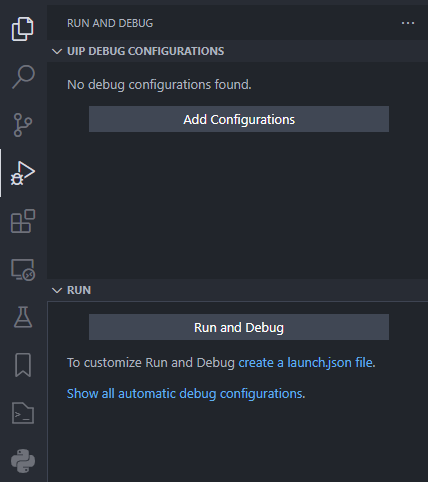
Initially, configurations.yml will not be present, so the view will report that and show a button to “Add Configurations”:

If there are any issues with configurations.yml, the view will report that and show a button to “See Problems”:

If there are no problems and there is at least 1 valid configuration, the view will render the contents of configurations.yml (layout will differ depending on the structure of your configurations.yml):
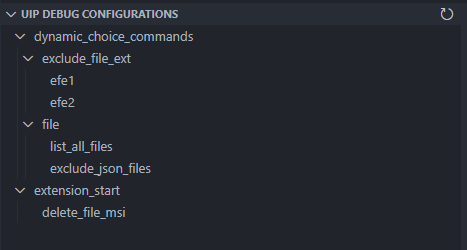
Hovering on each configuration entry should expose the following two icons:

Clicking on the “star” icon will mark the selected configuration entry as the default one (Clicking again will deselect it). This will be indicated with a green circle to the left of the configuration entry name:
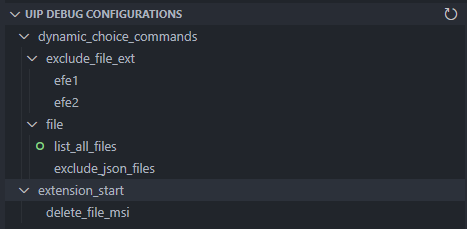
The default configuration entry will persist even if after VSCode has been closed. Clicking on the “debug” icon (next to the “star” icon) will launch that specific entry.
To update the list of entries in the "UIP DEBUG CONFIGURATIONS” view, click the “refresh” icon:

Clicking the “refresh” icon, however, should not be necessary. The view will automatically be updated when
configurations.ymlchangestemplate.jsonchanges (duringUIP: Pull)
2 - Plugin Dependencies
The debugging functionality has two dependencies: debugpy PIP module, and Universal Extension Bundle (universal_extension_bundle_1.2.0.zip).
debugpymodule is required for the Python debugger on VSCode’s end (client) to connect to the debugging server on the Extension side.- Universal Extension Bundle is a proprietary zip file which contains the Universal Extension Base Class code for all the supported API levels mentioned in the requirements section. Specifically, the bundle zip consists of a folder called
bundlewhich has:universal_extension_1.0.0.zipuniversal_extension_1.1.0.zipuniversal_extension_1.2.0.zipuniversal_extension_1.3.0.zip
The plugin has logic to install and setup both of the dependencies. For the bundle, however, additional steps are required on the user’s end.
2.1- Installing debugpy
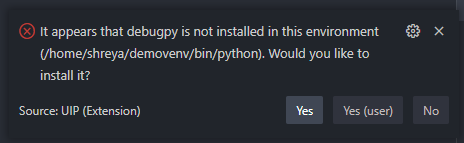
If the plugin detects debugpy is not installed in the active Python interpreter, it will go ahead and prompt the user to install it:
2.2 - Installing universal_extension_bundle_1.2.0.zip
The bundle zip is extracted and stored in:
C:\Users\<USER>\AppData\Roaming\Code\User\globalStorage\stonebranch.uip(Windows)/home/<USER>/.vscode-server/data/User/globalStorage/stonebranch.uip(WSL using remote access)/home/<USER>/.config/Code/User/globalStorage/stonebranch.uip(Linux/Unix)
Once extracted, there should be a folder called bundle in stonebranch.uip folder with all the zip files for each of the API versions. Note, the bundle only needs to be installed once.
If the plugin detects the bundle is not present in stonebranch.uip, the plugin will show the following prompt:

If the user selects Yes, then a dropdown will be shown to select the installation source.
- If the user selects
Path to universal_extension_bundle_1.2.0.zip, a file picker dialog will show up and let the user select only a zip file. - If the user selects
URL, they can specify a download link to the bundle zip. Upon selectingURL, 3 additional inputs will be shown:- One for the URL that must start with either
httporhttps. - One for the username, if applicable. Can be empty.
- One for the password/token, if applicable. Can be empty. User input will be masked out.
- One for the URL that must start with either
The plugin will attempt to download the file from the URL. If the URL does not point to a zip file, it will issue an error.
- If the user selects
Gitlab Package Registry, they will need to specify a full URL to the project/repository whose Package Registry contains the bundle zip. For instance, assuming that the user has a project/repository calledDummyProject,-
Upload the
universal_extension_bundle_1.2.0.zipas a generic package toDummyProject's package registry using the steps outline in GitLab Generic Packages Repository | GitLab. If successful, you should see something like this:
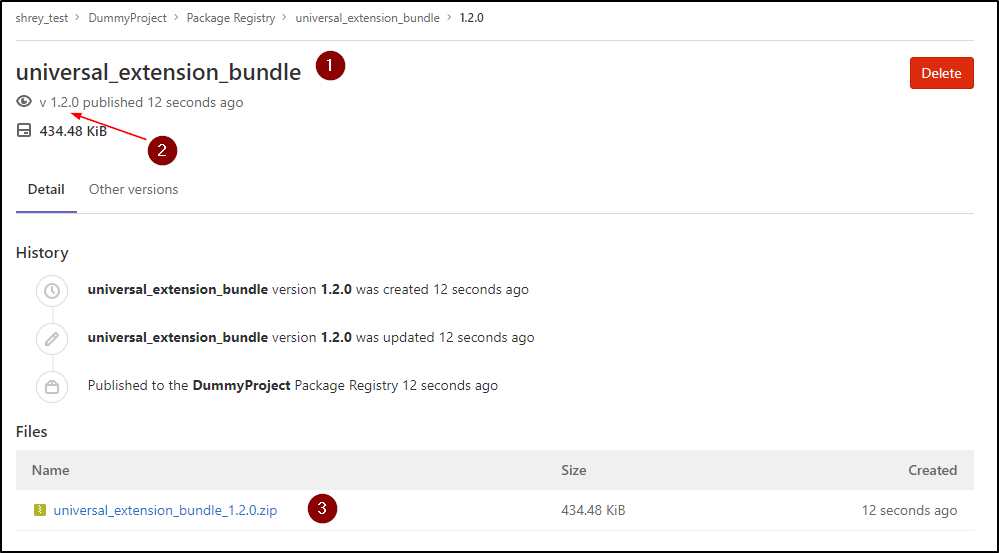
Note that
shrey_testis a group,DummyProjectis a project/repository. In the image above,- #1 shows the package name. This does not have to be
universal_extension_bundle, but it makes sense to name it that, and it makes the job of finding the actual zip easier for the plugin. - #2 shows the package version. Once again, it doesn’t have to be
1.2.0, but it makes sense to keep it that. - #3 shows the actual, uploaded bundle zip. This must be named
universal_extension_bundle_1.2.0.zip
- #1 shows the package name. This does not have to be
-
Assuming
Gitlab Package Registrywas clicked from the dropdown menu, the next prompt should be to enter the project/repository URL. This is the URL that takes the user to the project/repository’s landing page:

-
Then the next prompt should ask for the Personal Access Token.
-
Depending on how the package was uploaded in step 1, two things can happen:
- The plugin can find the
universal_extension_bundle_1.2.0.zipgiven that the package name isuniversal_extension_bundle(#1 in Figure 49) and package version is1.2.0(#2 in Figure 49) - The plugin cannot find the bundle zip because the package name and version are something other than
universal_extension_bundleand1.2.0.If so, the plugin will show another dropdown with all the packages, and the user must select the one that containsuniversal_extension_bundle_1.2.0.zip
- The plugin can find the
-
Assuming the zip file is available, the plugin will verify it using checksums before proceeding further. This is the default, but the user can turn off checksum verification in the settings:
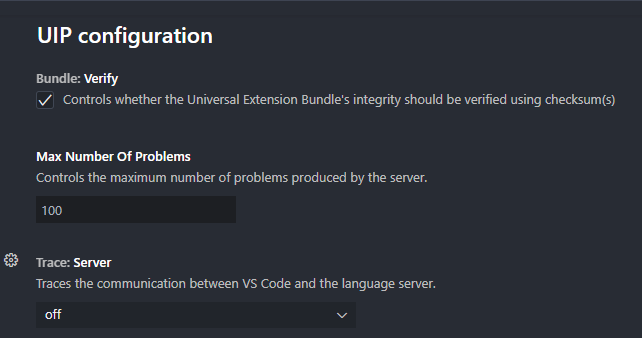
Even if the verification is turned off, the plugin will still ensure the zip file consists of the bundle folder, which itself should contain the files mentioned previously.
2.3 - Uses of universal_extension_bundle_1.2.0.zip
Aside from allowing the debugger to accurately launch/debug Universal Extension tasks, the bundle zip also adds autocompletion/suggestion functionality to extension.py. For example, without the bundle installed, VSCode will complain that it cannot find the universal_extension module:
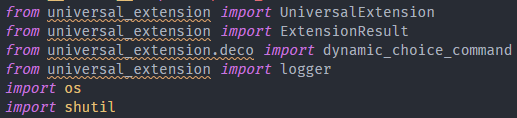
With the bundle installed,
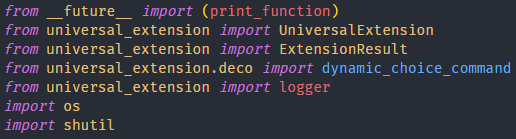
3 - configurations.yml
configurations.yml (located in .uip/debug/configurations.yml) is what the developer uses to define their debug configurations. At the top level, it consists of two objects:
properties(optional)api(required)
The properties object is used to define “global” options that apply to all debug configurations. As of now, it only consists of the agent object which only has the log_level property.
The api object is where the developer actually defines the debug configurations. Specifically, they can add configurations for:
- Dynamic choice commands using
dynamic_choice_commandsobject - Extension Start using
extension_startobject
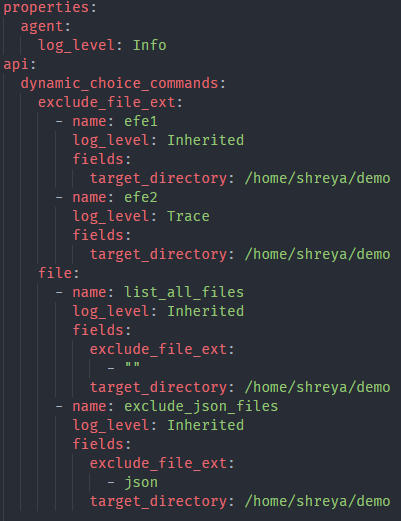
dynamic_choice_commands is an object where the key is the name of a dynamic choice field and the value is an array of configuration entries.
For instance, in the figure below, dynamic_choice_commands consists of the exclude_file_ext and file dynamic choice fields. exclude_file_ext is a dynamic choice field with two debug entries (can have any number of entries >=1) uniquely identified by the name property.
extension_start is simply an array of configuration entries:
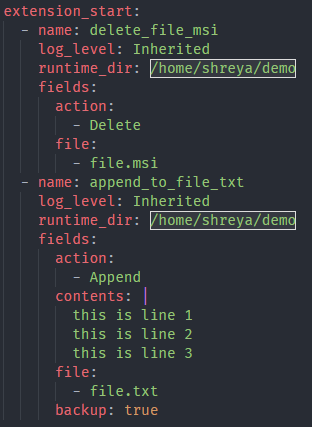
Each debug configuration entry must have the name property, and it must be unique.
The log_level property is optional, and by default, it will have a value of Inherited which means it will inherit the value from the agent's log_level defined in the properties object.
For extension_start, the fields object is required if there is at least 1 field defined. For a dynamic choice field under dynamic_choice_commands, the fields object is required if it has at least 1 dependent field.
extension_start has some additional properties besides name, log_level, and fields that are useful. It has:
runtime_dirwhich can be used to set the runtime directory for the Extension instance. By default, the runtime directory is the currently opened VSCode workspace.env_varswhich can be used to define environment variables that are available inextension_start()method (can be accessed using os.environ).- example:

- example:
uipobject which maps to theself.uipobject introduced in 7.2.0.0. Theuipobject consists of:-
is_triggeredboolean property with an initial value of false. The developer can access this usingself.uip.is_triggered. If it is set to true, then inextension_start(), the following additional values will be available for access:self.uip.trigger_idwhich is a randomly generated uuidself.uip.monitor_idwhich is a randomly generated uuid
-
The
self.uipobject also has aninstance_idproperty (accessed usingself.uip.instance_id) which is always available. Once again, it is a randomly generated uuid.tipThe
self.uipobject is only available for Universal Extension API levels1.2.0and greater. For levels<= 1.1.0, theself.uipobject will not be available. -
variablesobject can be used to define task variables. The variables can be accessed usingself.uip.task_variablesdictionary.-
example:

Note that:
- the type of the value of each variable is string. In other words,
self.uip.task_variables['var3']will return'[4,5,6]'which is astringand NOT a list. This is enforced to keep the behavior consistent with how the controller passes in task variables. - if
variablesobject is not defined, thetask_variablesdictionary will not be made available UNLESStemplate.jsonhas thesendVariablesproperty set toLocalin which case an empty dictionary will be passed in fortask_variables.
- the type of the value of each variable is string. In other words,
-
-
In addition to supporting autocompletion as shown in the demo, configurations.yml also supports type checking (e.g. an integer value specified for a Text field will be flagged as an error).
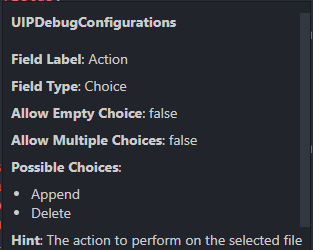
Hovering over a field will reveal some information about it. See the example below:
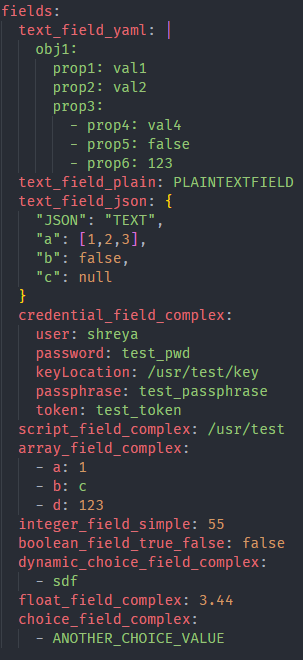
configurations.yml supports all field types that the Controller supports. This includes:
- Plain text field
- Yaml text field
- Json text field
- Large text field
- Credential field
- Script field
- Essentially a text field that accepts the full path to a file. The developer is responsible for creating the script file.
- Boolean field
- Integer field
- Float field
- Choice fields (dynamic and non-dynamic)
- Array fields
Here is an example below showing how to use the fields:
4 - Universal Extension API Levels
As shown in the demo, the developer can change the API Level they want to target using:

Clicking on UE API: 1.3.0 in the screenshot above will allow the developer to easily change the API Level. No additional change is required.
5 - Launching/Debugging
Assuming configurations.yml is correctly configured, and the plugin dependencies are installed, the developer can start debugging by simply pressing F5.
If a configuration entry has not been select as a default in the “UIP DEBUG CONFIGURATIONS” view, the following error will be issued:

and the view will be opened automatically.
Assuming an entry has been selected as the default, pressing F5 will start the debugging session as shown in the previous pages.
The VSCode Python Debug Client attempts to connect to the debugpy server injected in the Extension instance. The debugpy server listens on 127.0.0.1 port 5678. In most cases, this should be fine. If the developer is already using port 5678 for something else (or it’s being used by the OS/other program), the developer can change the port by modifying launch.json in the .vscode folder.
If a breakpoint has not been set, the debugger will start and finish without stopping. This is essentially the same as just simulating a launch.
The VSCode debug toolbar has also been enhanced to include a “Terminate” button:

This is used to force kill the Extension instance. This is useful if the Extension is stuck in an infinite loop (or in other blocking calls).
A “Cancel” button has also been added to simulate the Cancel command:

Clicking the “Cancel” button will call the extension_cancel method. Since the Cancel functionality does not apply to dynamic choice commands, it will not be shown when a dynamic choice command is being debugged. Furthermore, the Cancel functionality was not available in API Level 1.0.0, and thus, it will not be shown if the Universal Extension API Level in the Status Bar shows 1.0.0.
6 - Output Only Fields and Publishing Events
Output only fields can be updated as usual using the update_output_fields method from the ui module (or using self.update_extension_status method). For example,
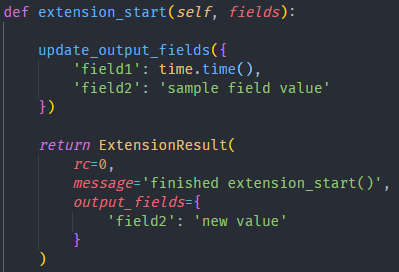
Running extension_start() shown above will result in:

As you can see in the figure above, the status of all output only fields (when they are updated) is printed in the UIP (CONSOLE) output channel. UIP (CONSOLE) will update in real-time as the fields are updated.
Publishing events is a similar process. Running the following:
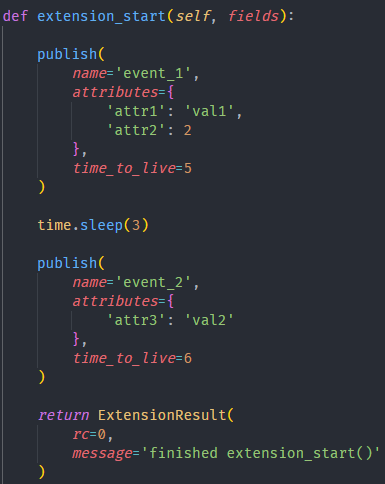
will result in

(Note that both the events were received about 3 seconds apart just as expected)
Even though publishing events is supported, it isn’t all that useful since the concept of triggers and monitor does not apply to the plugin. They can be useful to verify the event is successfully configured/setup.
7 - Output Channels
There are four output channels that the Extension sends output to:
- UIP (STDOUT)
Shift+Alt+1for quick access
- UIP (STDERR)
Shift+Alt+2for quick access
- UIP (EXTENSION)
Shift+Alt+3for quick access
- UIP (CONSOLE)
Shift+Alt+4for quick access
All four channels will be updated in real-time for all Universal Extension API Levels except 1.0.0 (Output will still be available for 1.0.0, but after the Extension finishes).
In API Level 1.0.0, the STDOUT and STDERR channels were not modified to flush output as soon as it was received. As a result, the output wasn’t available until the buffer was full or until the Extension process had finished.
As the name implies, UIP (STDOUT) will contain all output the Extension sends to STDOUT. This includes the output of all print statements.
As the name implies, UIP (STDERR) will contain all output the Extension sends to STDERR. This includes the output of the logger (e.g. logger.info/self.log.info etc.)
UIP (EXTENSION) will show the output of ExtensionResult returned by extension_start() or a dynamic choice command. All possible parameters of ExtensionResult will be rendered. For instance, the following
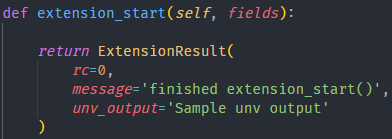
will result in

UIP (CONSOLE) will contain miscellaneous output that is still useful, but doesn’t fit in STDOUT/STDERR/EXTENSION. As shown in the previous section, it contains the output of Output Only Fields and Events.
8 - Known Limitations
8.1 - Uncaught Exceptions
While debugging, if an uncaught exception occurs (e.g. a = 1/0), VSCode sometimes opens the universal_extension.py base class file with some additional pop-ups. This can be prevented by unchecking the Uncaught Exceptions option in the Breakpoints section:
