TrustStore Settings
TrustStore Settings, which allow you to manage the default TrustStore, are available through the user interface.
The user running the Tomcat process has to have write access to the TrustStore file to import trusted certificates, examine certificates or delete entries.
After importing or deleting an entry, restarting the controller may be required for the changes to take effect.
Deleting and importing is only for the current cluster node.
If you choose not to use the JRE TrustStore, you must configure the following properties in the Universal Controller Start-up Properties (uc.properties) file:
These properties will take effect only after you restart Tomcat.
TrustStore Settings Details
See the field descriptions below, for a description of all fields and buttons that display in the TrustStore Settings Details.
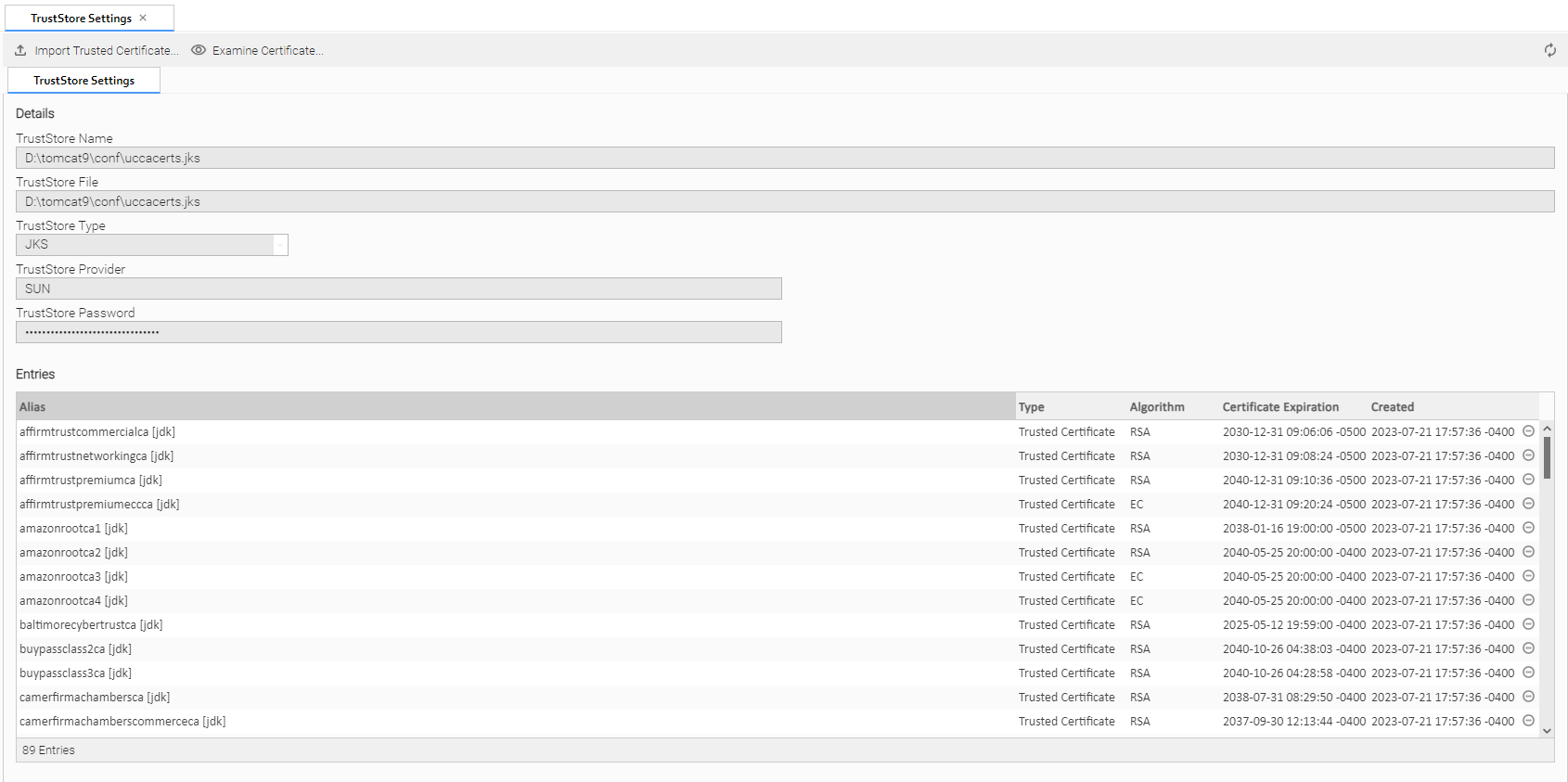
TrustStore Settings Field Descriptions
Details
This section contains information on the TrustStore details.
Field Name | Description |
|---|---|
TrustStore Name | The name of the default TrustStore. This is determined by the uc.trustmanager.truststore property. |
TrustStore File | The actual file name for the default TrustStore. In most cases, if the TrustStore Name is specified then the TrustStore File will be the same; however, if the TrustStore Name is not specified or is not accessible, then a different default TrustStore may be used (e.g. |
TrustStore Type | The type for the default TrustStore:
|
TrustStore Provider | The provider for the default TrustStore. |
TrustStore Password | The password for the default TrustStore. A masked value will be show if the TrustStore password is specified; otherwise, it will be blank. |
Entries
This section contains information on the TrustStore entries.
Field Name | Description |
|---|---|
Alias | Unique entry name. |
Type | Entries can be one of the following types:
|
Algorithm | Key algorithm. |
Certificate Expiration | The date and time that the certificate expires. |
Created | The date and time that the entry was created. |
Buttons
This section identifies the buttons displayed above the TrustStore settings.
Field Name | Description |
|---|---|
Import Trusted Certificate... | Opens a dialog to import a trusted certificate. |
Examine Certificate... | Opens details for the selected entry. |
Delete | Deletes selected entry from the TrustStore. |

Certificate Details
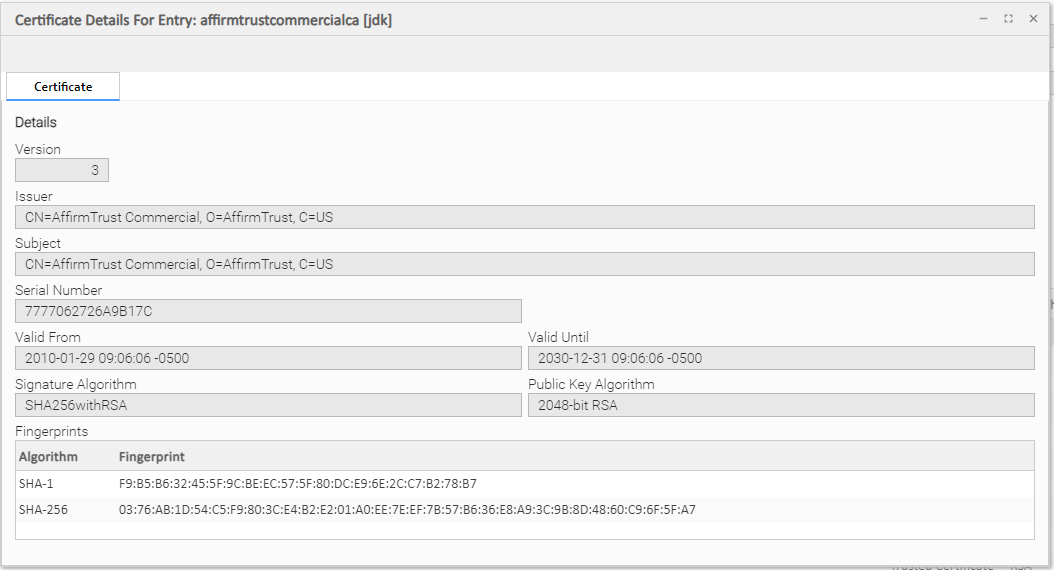
Certificate Details Field Description
Field Name | Description |
|---|---|
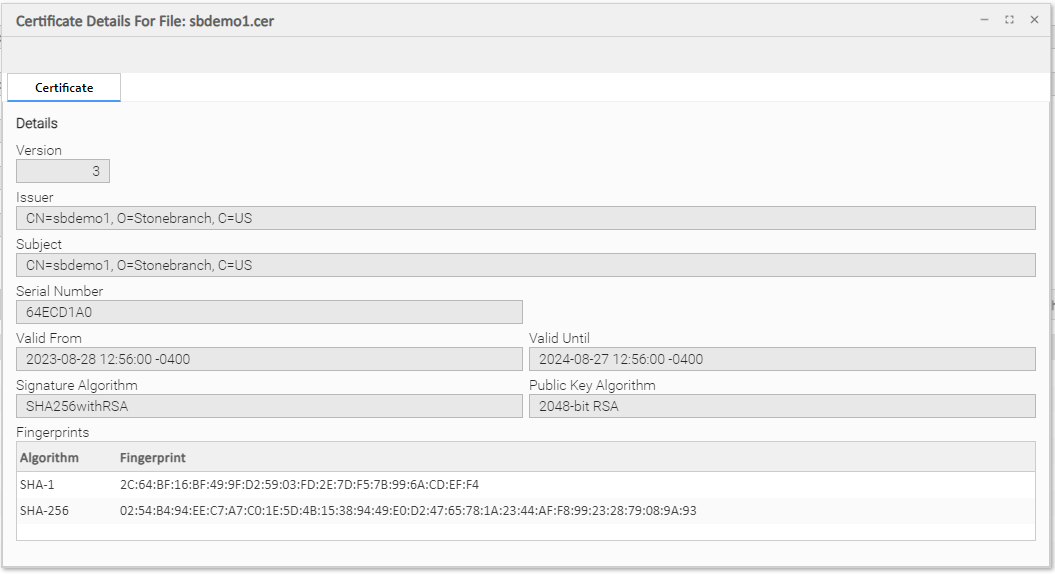
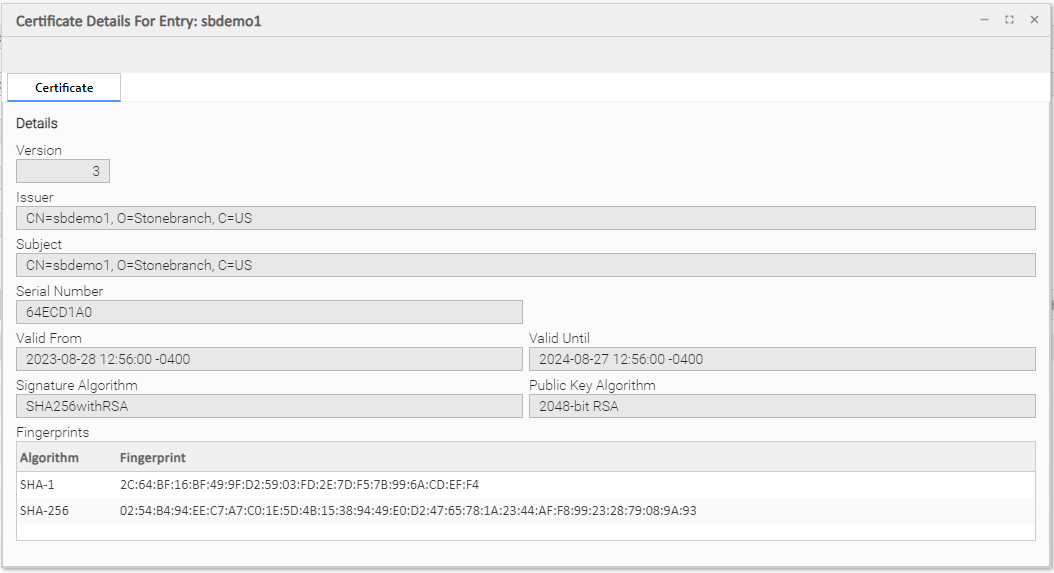
Details | This section contains information on the Certificate details. |
Version | The version number (1, 2, or 3) |
Issuer | The distinguished name (DN) of the certificate’s issuer. |
Subject | The distinguished name (DN) of the certificate’s subject (owner). |
Serial Number | The serial number generated by the certificate’s issuer. |
Valid From | The date and time that the certificate is valid from. |
Valid Until | The date and time that the certificate is valid until. |
Signature Algorithm | The algorithm used to sign the certificate. |
Public Key Algorithm | The algorithm used for the public key. |
Fingerprints | The SHA-1 and SHA-256 certificate fingerprints. |
Importing a Trusted Certificate
The import does not perform a chain of trust check for the certificate being imported. It is the responsibility of the user to first examine the certificate and verify that the certificate can be trusted before importing it.
Step 1 | From the Administration navigation pane, select TrustStore Settings. The TrustStore Settings page displays.
|
|---|---|
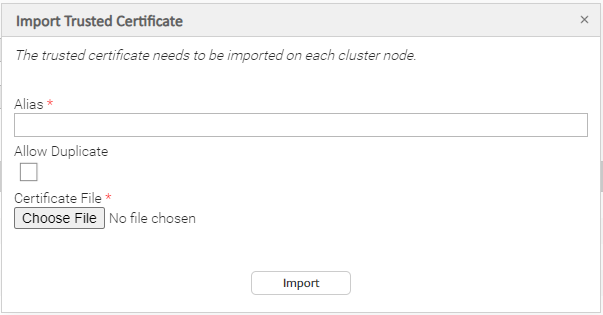
Step 2 | Click the Import Trusted Certificate... button at the top of the page. The Import Trusted Certificate pop-up dialog displays.
|
Step 3 | Click Choose File to select the trusted certificate to import and use the Alias field to specify a unique entry name. |
Step 4 | Click Import. |
Examining a Certificate
Step 1 | From the Administration navigation pane, select TrustStore Settings. The TrustStore Settings page displays.
|
|---|---|
Step 2 | Click the Examine Certificate... button at the top of the page. The Examine Certificate pop-up dialog displays.
|
Step 3 | Click Choose File to select the certificate to examine. |
Step 4 | Click Examine. The Certificate Details for the selected file displays.
|

Viewing Certificate Details for a Trusted Certificate Entry
Step 1 | From the Administration navigation pane, select TrustStore Settings. The TrustStore Settings page displays.
|
|---|---|
Step 2 | Right-click on an entry in the Entries section to display an action menu and click View Certificate Details. The Certificate Details for the selected entry displays.
|
Deleting a TrustStore Entry
Step 1 | From the Administration navigation pane, select TrustStore Settings. The TrustStore Settings page displays.
|
|---|---|
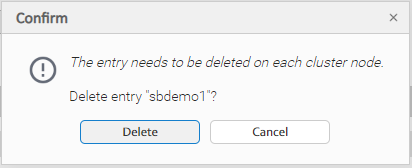
Step 2 | Right-click on an entry in the Entries section to display an action menu and click Delete. The Confirm deletion dialog displays.
|
Step 3 | Click Delete. |