Monitoring Approval Task Instances from the Approvals List
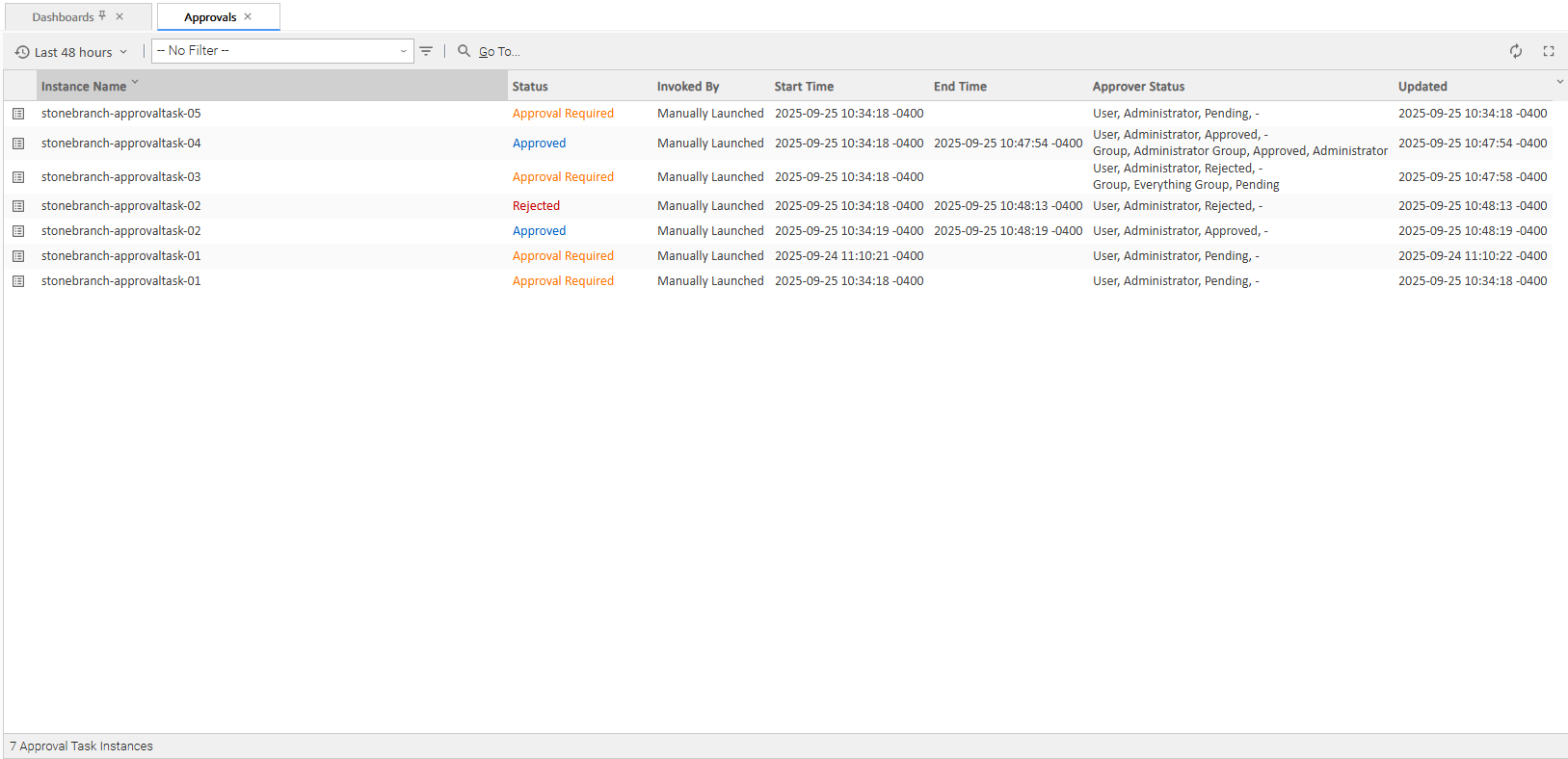
The Approvals list displays the same task instance information as the Task Instances List, but only for Approval Task instances. The default columns of the Approvals list are chosen to display information most relevant to Approval Task instances, so it is easy to monitor Approval status and issue Approve and Reject commands from here.
Unlike the Activity Monitor, the Approvals list is not automatically refreshed.
You also can monitor activity for a specific task by displaying task-specific Task Instances Details.
Displaying the Approvals List
From the Automation Center navigation pane, select Approvals. The Approvals list displays.
Approvals List Column Descriptions
The following table describes the default columns of information displayed on the Approvals list.
Column | Description |
|---|---|
Instance Name | Name of this task instance. |
Status | Current status of the task instance. |
Invoked By | System-supplied; how the task instance was launched. One of the following:
|
Start Time | Date and time the task instance started. |
End Time | Date and time the task instance ended. |
Approver Status | System-supplied; A list of approvers and their corresponding approval status. The table includes the following columns:
When the Approver Status changes after an Approve or Reject operation, the Approval Criteria will be evaluated. If the Approval Criteria are satisfied, the instance will enter the Approved status. If the Approval Criteria cannot be satisfied (even if the remaining Pending Approvers approve), then there is no longer a path to approval, so the Approval Task Instance will enter the Rejected status. Otherwise, it will remain in the Approval Required status. While the Approval instance remains in the Approval Required status, the Approver Status for any User or Group can be changed to Approved or Rejected. |
Updated | Date and time this task instance ended or was last updated. |
Approvals List Task Bar
An Approvals list task bar displays across the top of the Approvals list, which allows you to select which Approval task instances display on the list.

Time Constraint
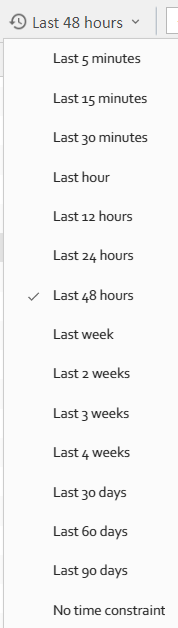
The Time Constraint drop-down list in the Approvals list task bar allows you to select a time frame for which you want task instances to display on the list.
The default time constraint, as specified by the Task Instances Time Constraint user preference, is 48 hours.
If the uc.task_instances.time_window.maximum property is specified, time constraint options beyond the maximum value will be removed from this list.
Filtering
The Filter field and Filter icon in the Appovals list task bar allows you to filter the list so that only task instances matching the specified criteria within the selected time constraint display on the list.

See Filters for detailed information an applying and saving filters.
Displaying Approval Task Instance Details
To display Details for a specific task instance, either:
- Click the Instance Name of the task instance to display the Details below the list.
- Click the Details icon next to the Instance Name of the task instance to display a Details pop-up.
From the task Instance Details, you can also display additional Details about the task instance:
Displays Metadata for the task instance, including a status history. | |
Displays complete database details for the task instance. | |
Displays a list of all variables available to the task instance, including any variables inherited from the parent or embedded (sub-Workflow) Workflow of the task instance. |
Issuing Commands Against Approval Task Instances
Where applicable, you can manually intervene in processing by issuing a command against one or more task instances. This includes Approve and Reject, as well as any other applicable commands.
For information about the commands available for each type of task, see Supported Commands.