AI Settings
Overview
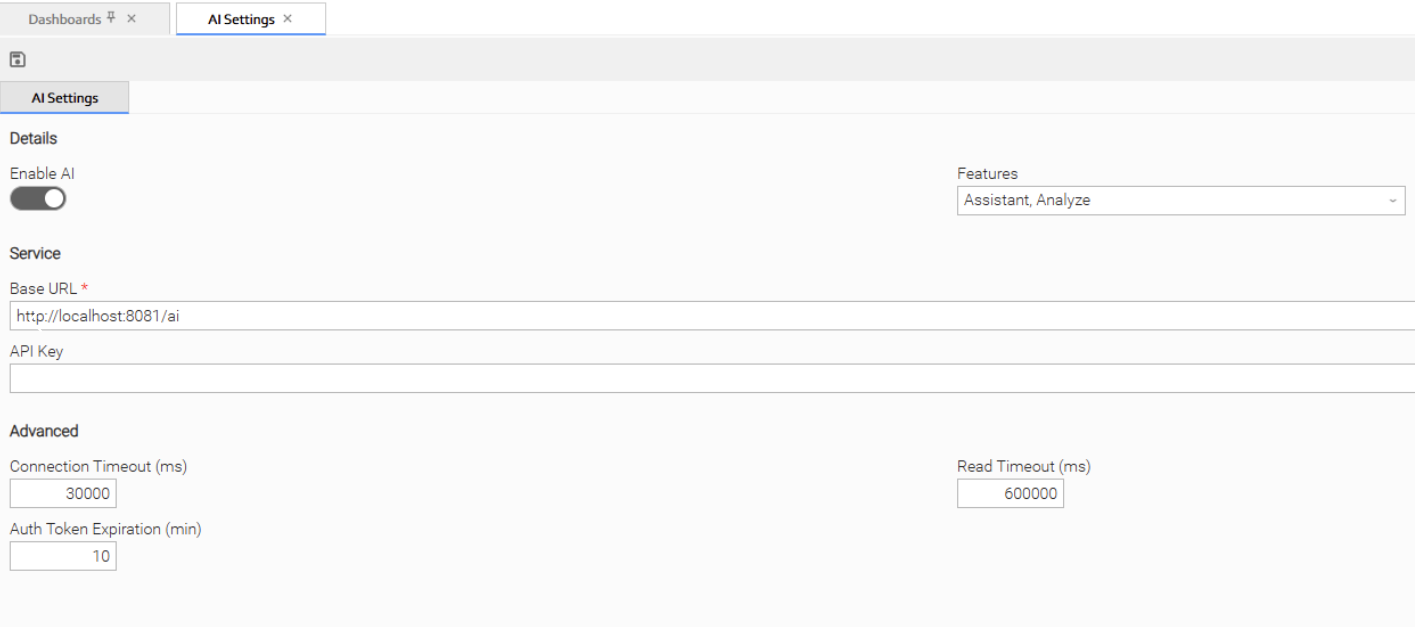
If you have Robi AI installed for your Controller, you must configure the AI Settings in the user interface. Only users with the ops_service role can read/update the AI Settings Settings.
Defining AI Settings
Step 1 | From the Automation Center navigation pane, select Administration > AI Settings. The AI Settings page displays.
|
|---|---|
Step 2 | Enter / select your AI Settings, using the field descriptions below as a guide.
|
Step 3 | Click the |
 button.
For information on how to access additional details - such as Metadata and complete database Details - for AI Settings (or any type of record), see Records.
AI Settings Details Field Descriptions
Details
This section defines whether AI functionality is enabled and which AI features are available for use.
Field Name | Description |
|---|---|
Enable AI | Enable or disable AI functionality. |
Features | Select which AI features to enable. Options:
|
Service
This section specifies the external AI service endpoint and API key.
Field Name | Description |
|---|---|
Base URL | Base URL of the AI service (e.g., |
API Key | Optional API key for authenticating with the AI service. |
Advanced
This section contains connection settings to the external AI service.
Field Name | Description |
|---|---|
Connection Timeout (ms) | Connection timeout in milliseconds for AI service requests. |
Read Timeout (ms) | Read timeout in milliseconds for AI service requests. |
Auth Token Expiration (ms) | Time in minutes before AI callback authentication tokens expire. Valid range: 5-60. |