Verifying Universal Agent Installation
Verifying Agent Installation
If an installed Agent is configured to communicate with Universal Controller, you can verify that it is installed, running, and communicating with the Controller by performing the following steps:
Step 1 | From your browser, open the Universal Controller user interface (where |
|---|---|
Step 2 | Log in with a user name and password for this system. |
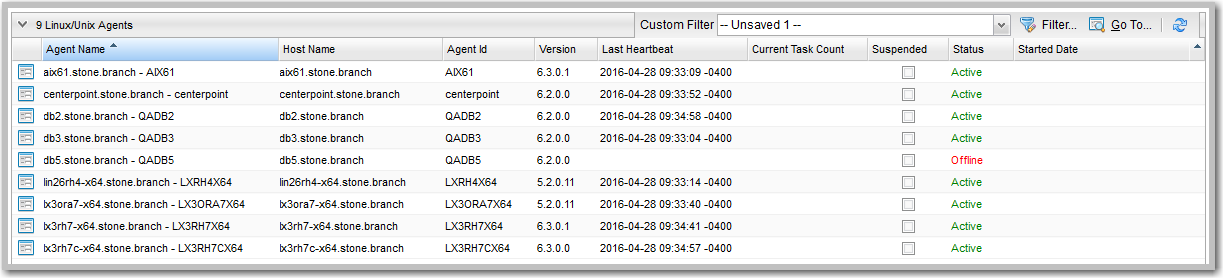
Step 3 | To check for your newly installed Agent, select Agents > All Agents from the Agents & Connections navigation pane. You will see a list similar to the following example, which includes the Agent that you just installed. Make sure the Agent Status is Connected.
|
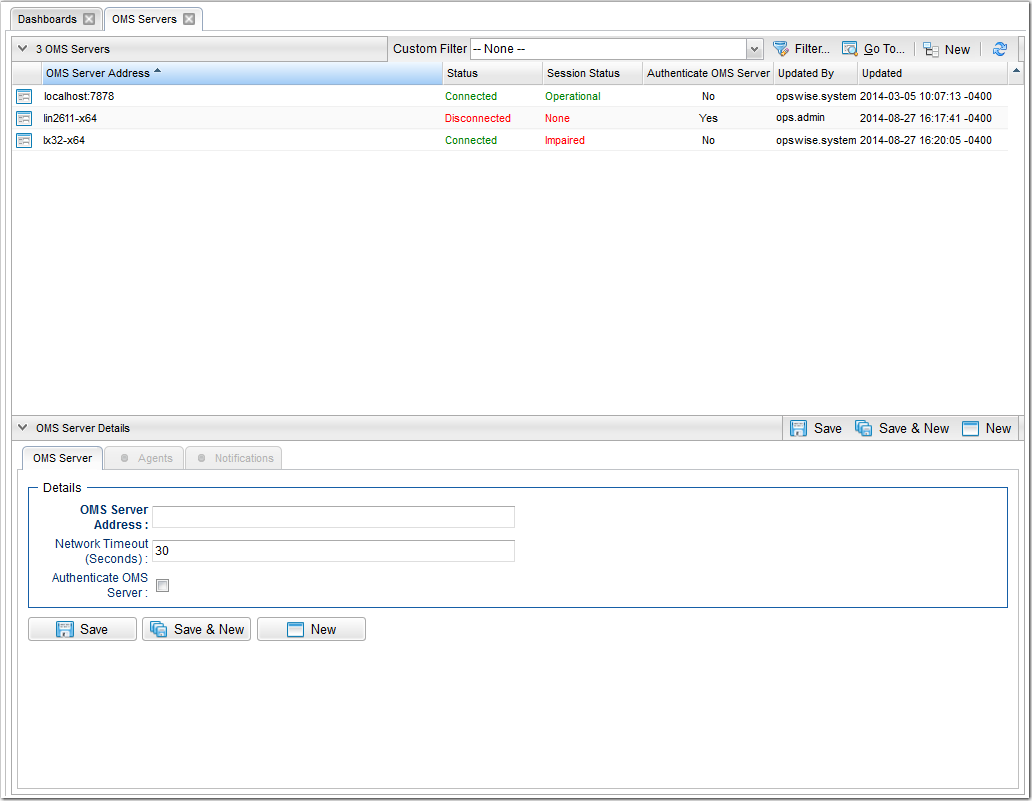
Step 4 | To check for your newly installed OMS Server, select System > OMS Servers from the Agents & Connections navigation pane. You will see a list similar to the following example, which includes the OMS Server that you just installed as part of the Agent package. Make sure the OMS Server Status is Active.
|
Step 5 | For more information about these components in the Universal Controller user interface, see: |