Robi AI Prerequisites
Before setting up Robi AI, ensure that you have met the following prerequisites.
AI License
You must have an AI License to access Robi AI features.
To verify that your license includes AI, navigate to the System Details widget in the Universal Controller. If your license includes AI, you will see AI: True listed in the license information.
Azure OpenAI
Robi AI uses Azure OpenAI for its chat and embedding models. You must have:
- An active Azure subscription with the Azure OpenAI service provisioned
- Two OpenAI Deployments: one for the chat and one for doc embeddings. You must note the Deployment Name of each.
- An API key for your Azure OpenAI resource
- The Endpoint URL for your Azure OpenAI resource
The following sections will guide you through setting up Azure OpenAI and getting the API Key and Endpoint URL needed to configure the AI Service.
Robi AI officially supports Azure OpenAI only. While other model providers may be technically configurable, they are not supported.
Models
Robi AI requires two Azure OpenAI models deployed in your Azure environment:
| Required Model | Model ID | Purpose |
|---|---|---|
| GPT-5.1 | gpt-5.1 (2025-11-13) | Chat / Completions |
| Text Embedding 3 Small | text-embedding-3-small | Embeddings |
Both models are Foundry Models sold directly by Azure.
For full model specifications and region availability, see the Microsoft documentation:
Azure is retiring gpt-4.1. If you are currently using gpt-4.1, upgrade your deployment to gpt-5.1 (and set the spring.ai.openai.chat.model configuration to gpt-5.1) to avoid a forced cutover. See the Azure OpenAI model retirement schedule.
Azure OpenAI Resource vs. Azure AI Foundry
Microsoft offers two paths to deploy OpenAI models on Azure. Either path works for the models we require. The right choice depends on your existing environment and broader AI needs.
Option A: Azure OpenAI Resource (Recommended)
An Azure OpenAI resource gives you direct, focused access to OpenAI models via REST API and SDK.
Choose this if:
- You only need the OpenAI models listed above (
gpt-5.1andtext-embedding-3-small). - You want a straightforward setup with minimal overhead.
- You are already using an Azure OpenAI resource for other workloads.
How to set up:
- In the Azure portal, create an Azure OpenAI resource (or reuse an existing one) in a supported region.
- Navigate to the resource > Model deployments > Deploy model.
- Deploy
gpt-5.1- select the Standard or Global Standard deployment type. - Deploy
text-embedding-3-small- same process. - Note your Endpoint URL and API Key, and the Deployment Name of each model.
Option B: Azure AI Foundry (Project-based)
Azure AI Foundry (formerly Azure AI Studio) is a broader platform that embeds Azure OpenAI as one of its components. It adds multi-model access, agent orchestration, evaluation tooling, and lifecycle management.
Choose this if:
- You already have an Azure AI Foundry project set up.
- You plan to use additional models beyond OpenAI (e.g., Meta Llama, Mistral, DeepSeek, Cohere).
- You want a unified platform for experimentation, fine-tuning, monitoring, and agent workflows.
How to set up:
- Sign in to Microsoft Foundry and open (or create) a Foundry project.
- Go to Discover > Models, search for
gpt-5.1. - Select Deploy > Default settings (or Custom settings to pick a specific region/deployment type).
- Repeat for
text-embedding-3-small. - From the deployment detail page, note your Endpoint URL and API Key, and the Deployment Name of each model.
Because both models are "sold directly by Azure," the deployment and API experience is identical regardless of whether you use a standalone Azure OpenAI resource or a Foundry project. The API endpoint format and authentication work the same way.
Locating the API Key, Endpoint URL, and Deployment Name
If you are having trouble locating your API Key, Endpoint URL, or Deployment Name, there are two simple ways to find them in Azure.
Foundry
In Azure Foundry, go to Deployments, then view the details of your chat (gpt-5.1) model.
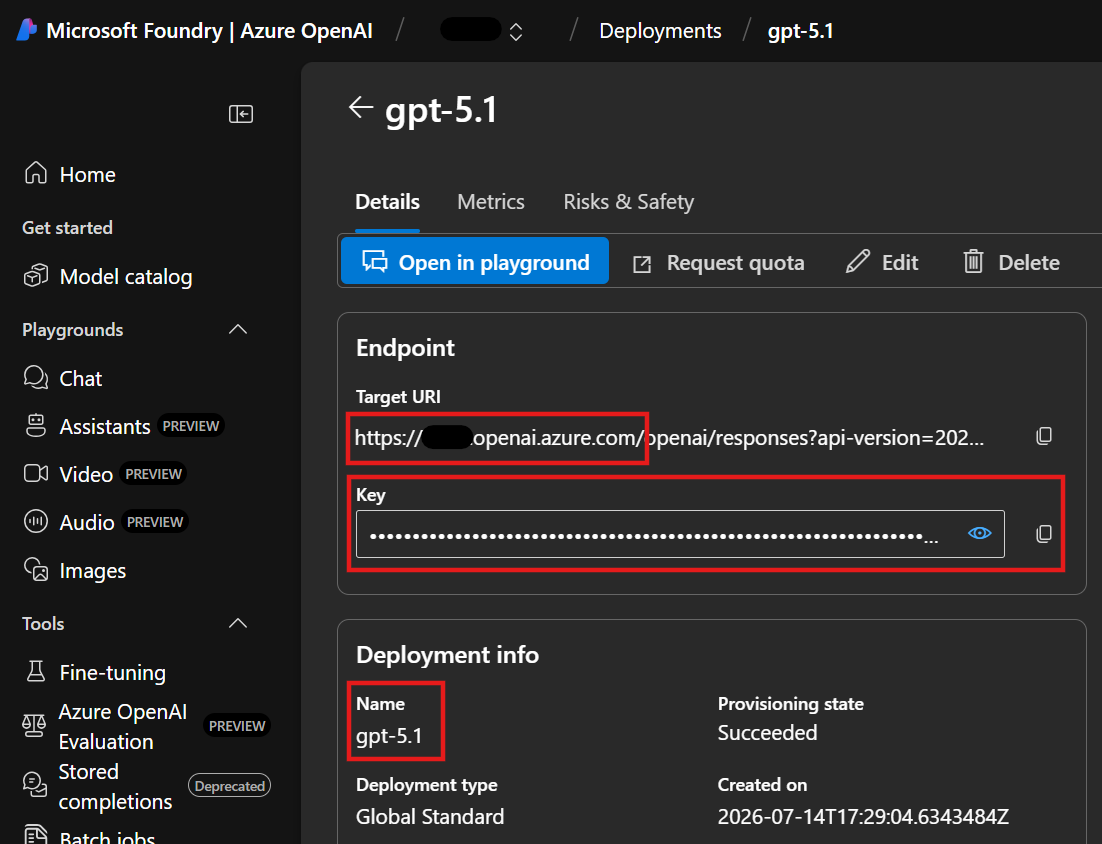
- The Endpoint URL is the base URL of the Target URI.
- Your API Key is in the Key field
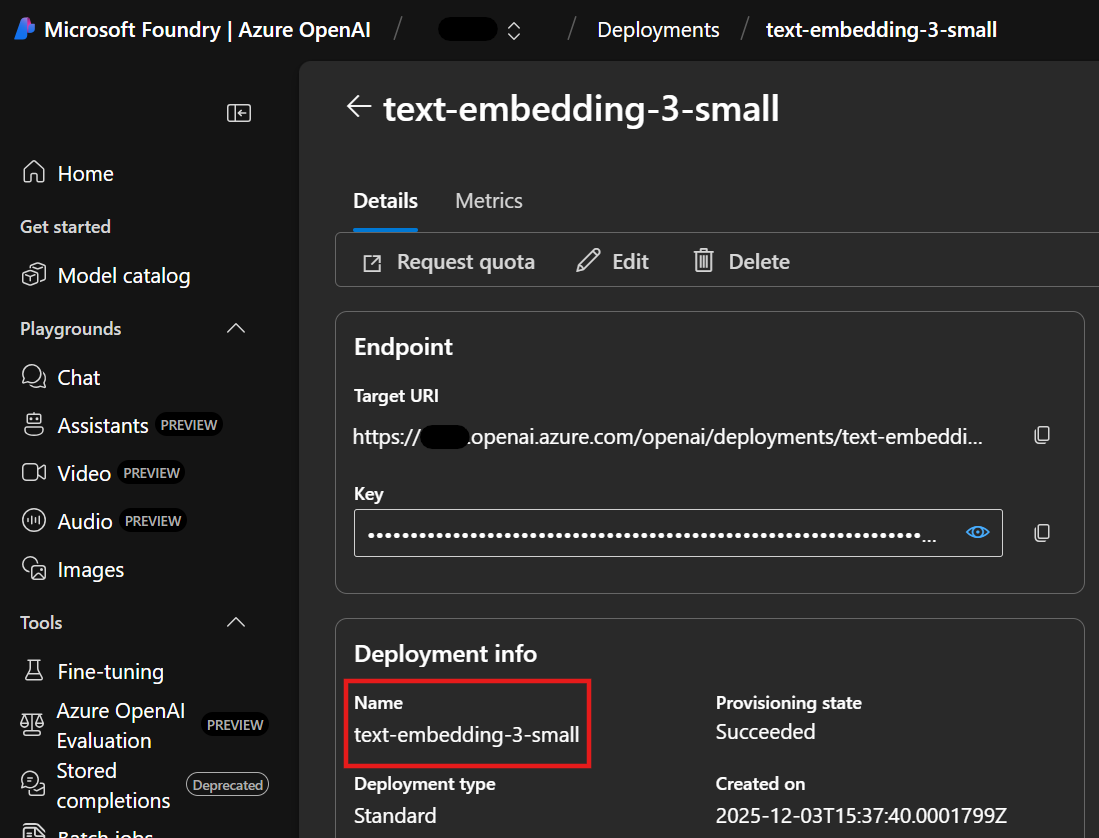
- Your Deployment Name is the Name in the "Deployment info" section
You should also check the Deployment Name of the embedding (text-embedding-3-small) model.
Azure Portal
You can find the same information in the Azure Portal. For each deployment, go to Resource Management > Keys and Endpoint.
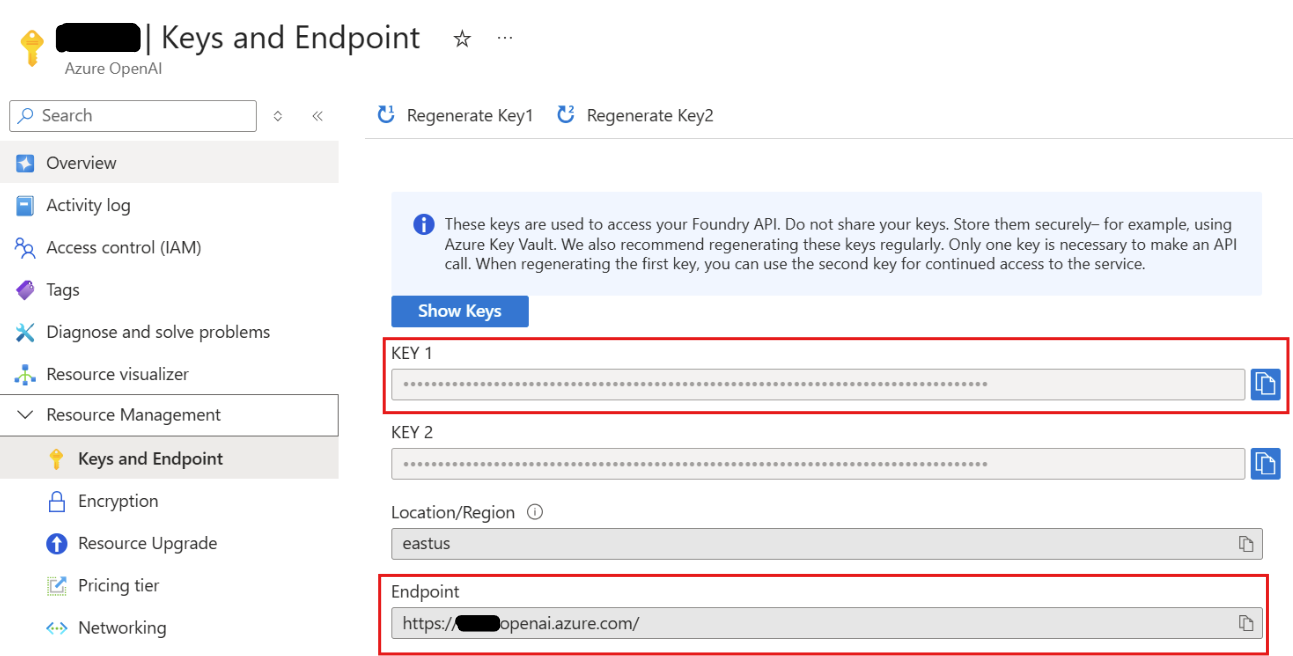
- As shown above, there are 2 keys provided (for key rotation). You can use KEY 1 as your API Key, however, either would work.
- Note the Endpoint