Boomi
Disclaimer
Your use of this download is governed by Stonebranch's Terms of Use.
Version Information
Template Name | Extension Name | Version | Status |
|---|---|---|---|
CS Boomi | ue-cs-boomi | 1.1.0 | Fixes and New Features are introduced |
Refer to Changelog for version history information.
Overview
Boomi is a cloud-based integration platform that enables businesses to connect applications, data, and systems seamlessly.
The Boomi Universal Task allows you to securely execute an Integration Process in Boomi.
An Integration Process in Boomi is a workflow that automates the movement and transformation of data between different systems using a series of connected steps.
Key Features:
- Execute a Boomi Integration Process
- Monitor a Boomi Integration Process
- Drag-and-drop a Boomi task into any existing scheduling workflow within the UAC.
- Start a Boomi Integration Process: Time, File, or Event based.
Software Requirements
This integration requires a Universal Agent and a Python runtime to execute the Universal Task. It communicates with the Boomi AtomSphere REST API over HTTPS and bundles no third-party SDK.
Area | Details |
|---|---|
Python Version | Requires Python 3.11 tested with Agent Bundled Python 3.11.6. |
Universal Agent Compatibility |
|
Universal Controller Compatibility | Universal Controller Version >= 7.7.0.0. |
Network and Connectivity | Network connectivity and access rights are required for the Boomi Web Services Connector or HTTP Client Connector |
Configure Universal Task
For a new Universal Task, create a new task, and enter the required input fields.
Supported Actions
Action: Execute Integration Process
This action allows the execution of an Integration Process in Boomi. An Integration Process is a workflow that automates the movement and transformation of data between different systems using a series of connected steps.
While the Integration Process is running, the Universal Task polls its status at the configured Polling Interval (sec) and surfaces the latest value in the Status output field on every poll. Polling continues until the Process reaches a terminal status or the Max Number of Polls is exhausted (set it to 0 to poll indefinitely). If polling is exhausted before completion, the task fails and the Status field is set to TIMED_OUT.
Input Fields
Name | Type | Description | Version Information |
|---|---|---|---|
Action | Choice | The action performed upon the task execution.
| Introduced in 1.0.0 |
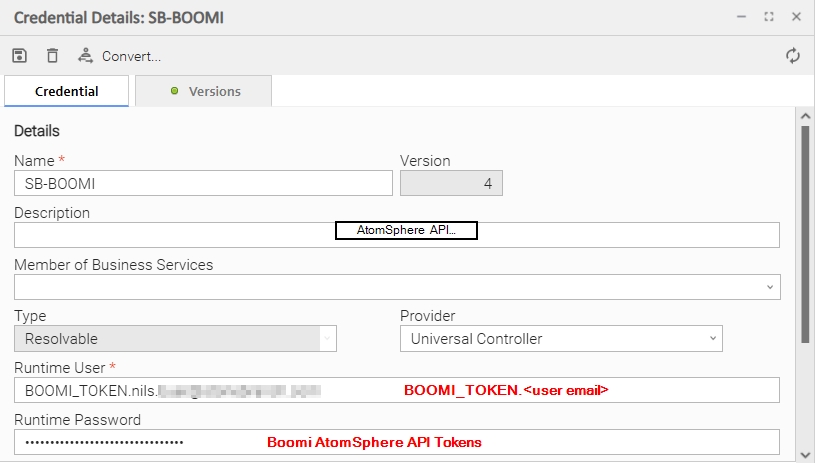
Credentials | Credentials | Credentials should be defined as follows:
| Introduced in 1.0.0 |
Boomi Server URL and Port URL | Text | Base URL of the Boomi Server API Default: https://api.boomi.com/api/rest/v1 | |
Account ID | Text | Boomi Account ID Can be retrieved in the Boomi UI under: Settings » Account Information | |
Atom ID | Text | Boomi Atom ID Can be retrieved in the Boomi UI under: Manage » ATOM | |
Process ID | Text | Boomi Process ID Can be retrieved in the Boomi UI under: Manage » Process Reporting » action gear : view extended informtion | |
Polling Interval (sec) | Integer | The time between retries for getting the status of the Integration Process. Defaults to 30 seconds if left blank. As a best practice, if the Job's expected completion duration is long, set the Polling Interval to a larger value. A short value will trigger frequent checks towards Boomi, which is inefficient in terms of resources for long-duration Jobs. Example: Polling Interval: 60s Max Number of Polls: 10 The Task will check every 60s, if the Process is finished. After 10 checks ( 10x60s = 600s) the task will fail. | Introduced in 1.0.0 |
Max Number of Polls | Integer | Maximum number of polls. Can be used, with Polling Interval (sec), to control the approximate expected duration of the Job. Leave blank or set to 0 to poll indefinitely until the Process reaches a terminal status. |
Output Fields
Name | Type | Description | Version Information |
|---|---|---|---|
Status | Text (Output Only) | The current Boomi execution status, updated on every poll (for example: Set to | Introduced in 1.1.0 |
Exit Codes
Exit Code | Status | Description |
|---|---|---|
0 | Success | Successful Execution. |
1 | Failure | Generic Error, polling timeout, or in case the Task finished with reported Error. |
2 | Failure | Authentication or authorization error (Boomi API returned HTTP 401, 402, or 403). Check the supplied Credentials and Boomi API token. |
STDOUT and STDERR
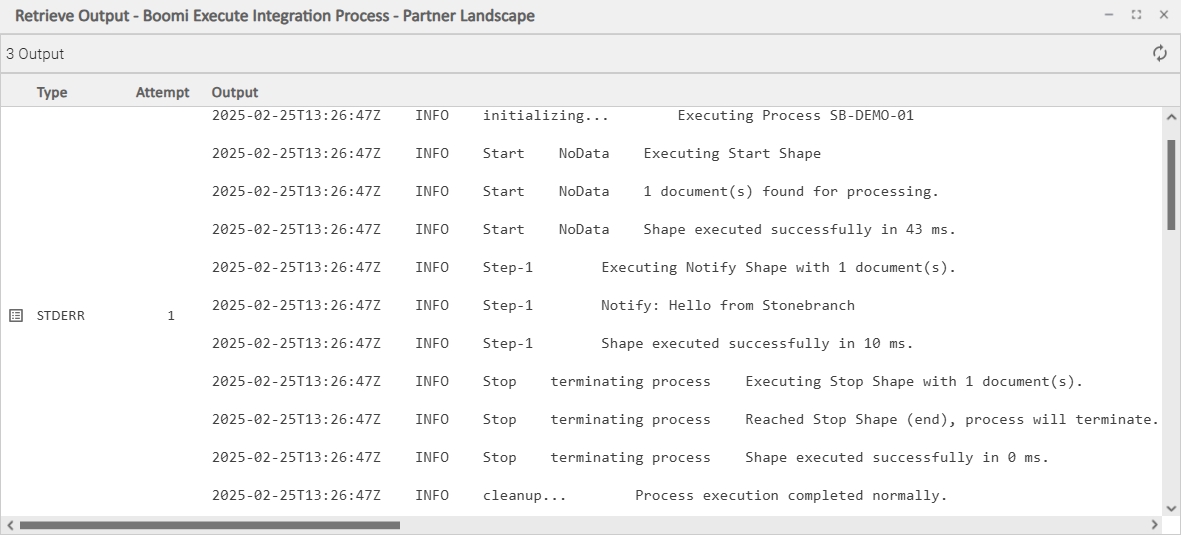
STDOUT of this integration is empty and STDERR provides detailed Information on the processing of Integration Process and its individual steps.
Backward compatibility is not guaranteed for the content of STDOUT/STDERR and can be changed in future versions without notice.
Task Example
Execute and Monitor an Integration Process in Boomi
Universal Task for Boomi
The following Task executes an Integration Process in Boomi.
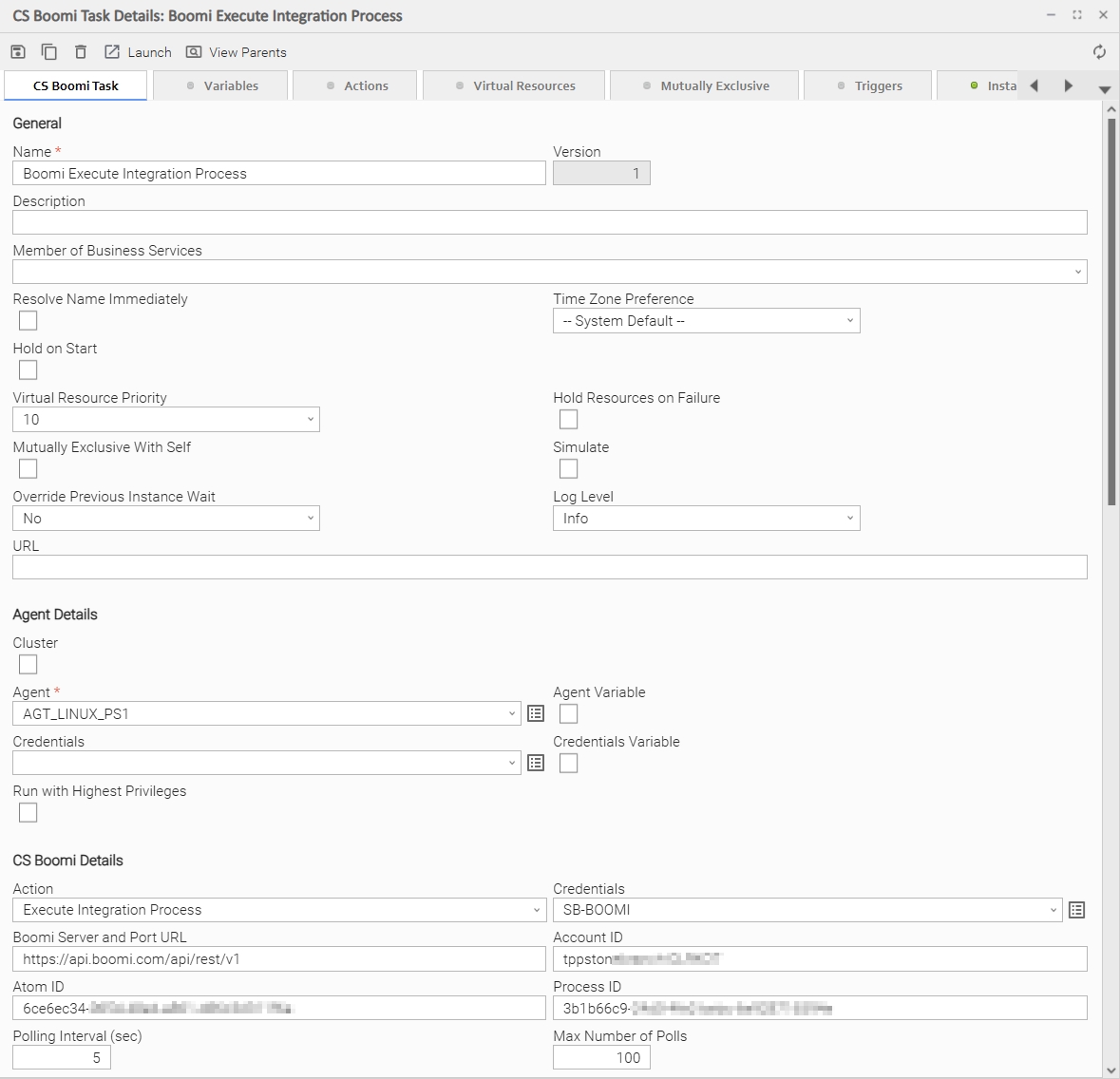
Credentials:
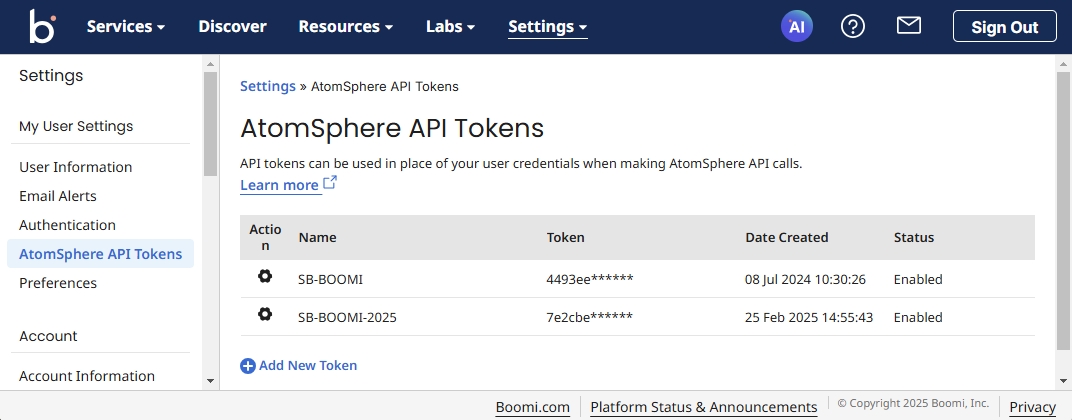
Boomi AtomSphere API Token
Running Integration Process in Boomi
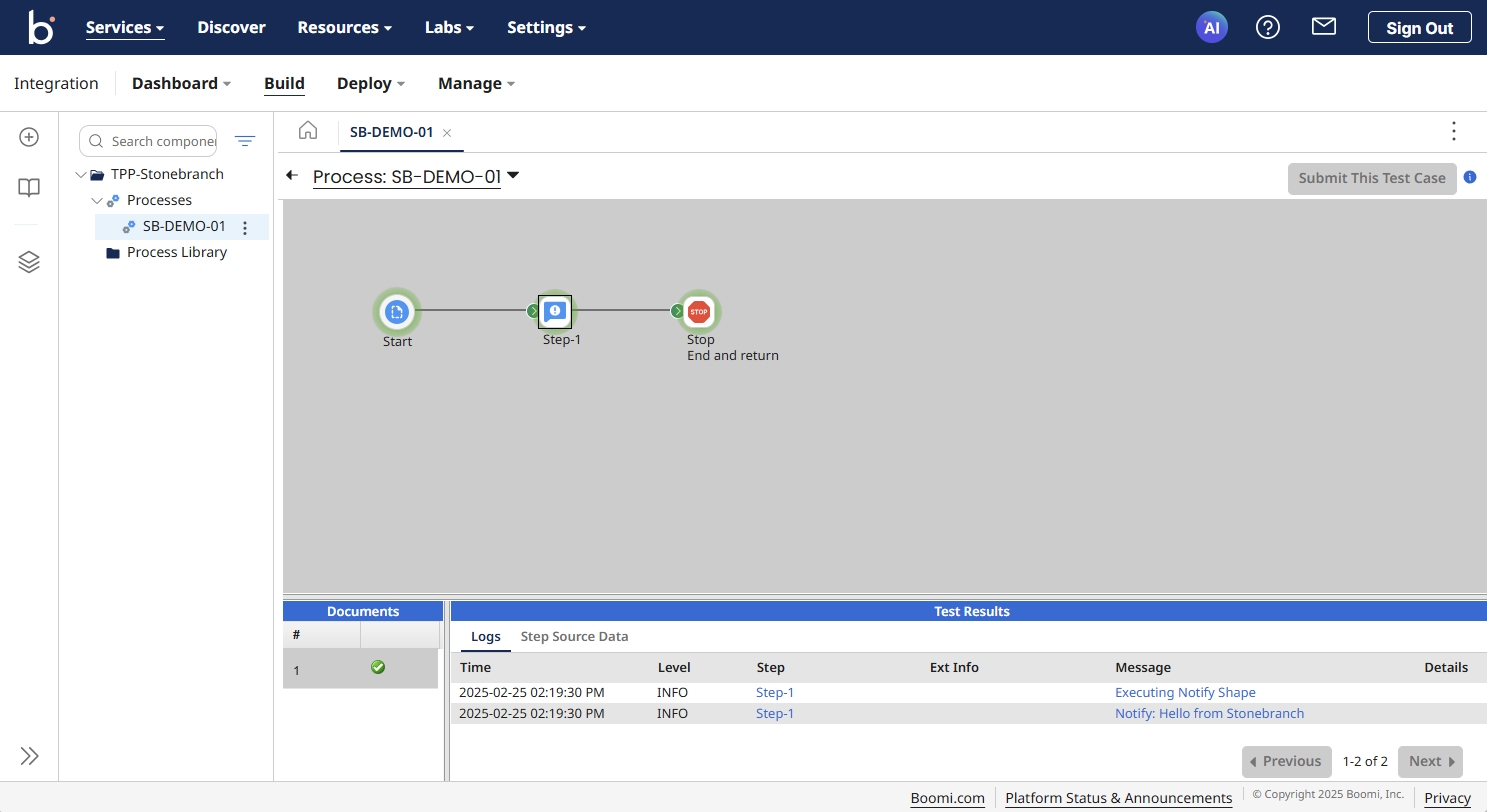
Integration Process Log file
How To
Import Universal Template
To use the Universal Template, you first must perform the following steps.
- This Universal Task requires the Resolvable Credentials feature. Check that the Resolvable Credentials Permitted system property has been set to true.
- To import the Universal Template into your Controller, follow these instructions.
- When the files have been imported successfully, refresh the Universal Templates list; the Universal Template will appear on the list.
Modifications of this integration, applied by users or customers, before or after import, might affect the supportability of this integration. For more information refer to Integration Modifications.
Configure Universal Task
For a new Universal Task, create a new task, and enter the required input fields.
Integration Modifications
Modifications applied by users or customers, before or after import, might affect the supportability of this integration. The following modifications are discouraged to retain the support level as applied for this integration.
- Python code modifications should not be done.
- Template Modifications
- General Section
- "Name", "Extension", "Variable Prefix", and "Icon" should not be changed.
- Universal Template Details Section
- "Template Type", "Agent Type", "Send Extension Variables", and "Always Cancel on Force Finish" should not be changed.
- Result Processing Defaults Section
- Success and Failure Exit codes should not be changed.
- Success and Failure Output processing should not be changed.
- Fields Restriction Section
The setup of the template does not impose any restrictions. However, concerning the "Exit Code Processing Fields" section.- Success/Failure exit codes need to be respected.
- In principle, as STDERR and STDOUT outputs can change in follow-up releases of this integration, they should not be considered as a reliable source for determining the success or failure of a task.
- General Section
Users and customers are encouraged to report defects, or feature requests at Stonebranch Support Desk.
Document References
This document references the following documents:
Document Link | Description |
|---|---|
User documentation for creating, working with, and understanding Universal Templates and Integrations. | |
User documentation for creating Universal Tasks in the Universal Controller user interface. |
Changelog
ue-cs-boomi-1.1.0 (2026-07-28)
Enhancements
Added: New Status output field that reflects the live Boomi execution status, updated on every poll. (#58798)
Fixes
Fixed: Polling reliability for long-running Processes - configurable polling interval (defaults to 30 seconds) and maximum number of polls (0 = poll indefinitely), with a dedicatedTIMED_OUTstatus when polling is exhausted. (#58798)Fixed: Error propagation for authentication, API, and process-failure conditions. (#58798)
ue-cs-boomi-1.0.1 (2025-04-16)
Fix
- Corrected the API level to 1.6 (UC/UA 7.6)
ue-cs-boomi-1.0.0 (2025-03-06)
Initial Version